Automate Apex Trader Funding with TradersPost
Learn how to connect your Apex Trader Funding account to TradersPost through Tradovate. This guide covers setup, trading rules compliance, automation policy, and managing positions within Apex's guidelines.

Marketing

Bottom Line
- Apex Trader Funding accounts can connect to TradersPost via the Tradovate platform, allowing execution of TradingView strategies using webhook-based alerts.
- Apex prohibits fully automated trading systems on funded accounts but allows limited automation tools like ATM strategies and webhook-based alerts with active oversight.
- The connection method involves using Tradovate credentials to link Apex accounts to TradersPost, which acts as a bridge between signal sources and the trading account.
- Compliance rules include closing all positions by 4:59 PM ET daily and adhering to the 30% consistency and negative P&L rules.
- Fully automated systems and copy trading are prohibited, and traders must verify Apex's current automation policies before using automated tools.
Update: March 2026
Apex Trader Funding permits semi-automated trading only. Fully automated set-and-forget strategies are prohibited. Traders using TradersPost must actively monitor and manage all trades. See the automation policy section below for full details.
Apex Trader Funding accounts can be connected to TradersPost through the Tradovate platform. This allows traders to execute TradingView strategies and manage positions in their Apex accounts through webhook-based alerts.
Apex prohibits fully automated trading systems (EAs, bots, AI, algorithms, HFT) on funded accounts1. However, limited automation tools such as ATM strategies and webhook-based alerts are permitted when the trader maintains active oversight2. Verify the current automation policy directly with Apex before using any automated tools on funded accounts.
How TradersPost Connects to Apex
The connection works through Tradovate, which is one of the platforms Apex supports3. When you open an Apex evaluation or funded account with Tradovate as your chosen platform, you receive Tradovate login credentials that can be connected to TradersPost.
TradersPost acts as the bridge between your signal source (TradingView, TrendSpider, or custom webhooks) and your Apex account on Tradovate. Alerts from your charting platform trigger orders in your account.
The signal chain requires three components:
- Signal source: TradingView alerts, TrendSpider bots, or custom webhook integrations
- TradersPost: Receives signals and routes orders to your broker
- Tradovate: Executes orders in your Apex account
Setting Up the Integration
Step 1: Create Your Apex Account with Tradovate
When purchasing an Apex evaluation, select Tradovate as your execution platform3. Rithmic is also supported by Apex but does not connect to TradersPost. After your account is created, you will receive Tradovate login credentials.
Step 2: Connect Tradovate to TradersPost
Log into your TradersPost account and navigate to the Brokers section. Add a new Tradovate connection using the credentials from your Apex account. TradersPost will authenticate with Tradovate and display your available accounts.
Step 3: Configure TradingView Alerts
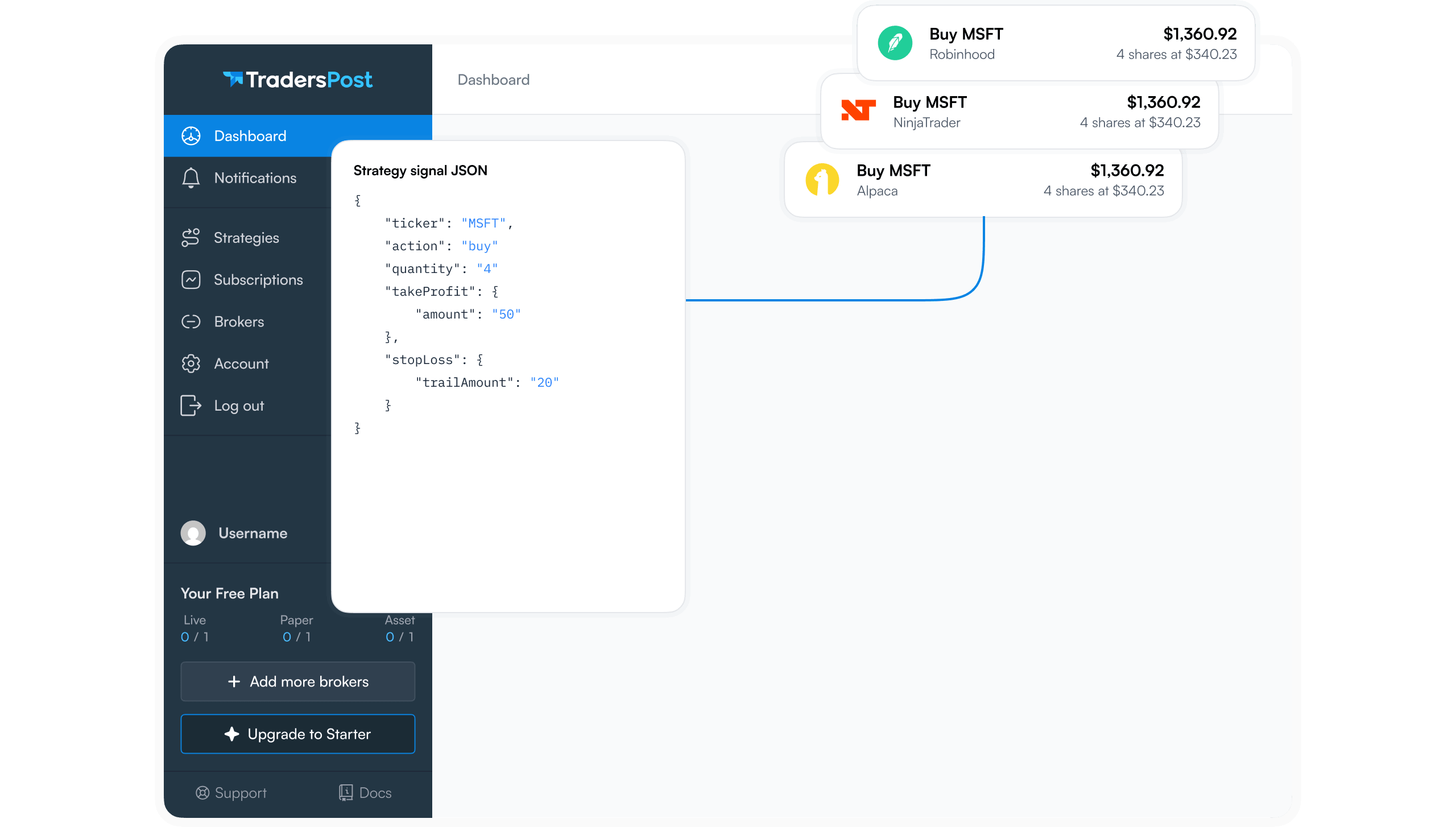
Create a strategy or indicator in TradingView that generates buy and sell signals. Set up alerts that send webhook messages to your TradersPost webhook URL. The alert message should include the ticker symbol, action (buy/sell), and any position sizing parameters.
TradersPost provides a webhook URL unique to your account. Copy this URL and paste it into the TradingView alert webhook field. When the alert triggers, TradingView sends the signal to TradersPost, which routes the order to your Apex account.
Step 4: Test with Paper Trading
Before running automation on your funded account, test the entire signal chain using TradersPost's paper trading mode. This verifies that alerts fire correctly, orders route properly, and position sizing matches your expectations.
Pay attention to execution timing, especially around the 4:59 PM ET position closure requirement3. Ensure your strategy or a separate alert flattens all positions before the daily cutoff.
Strategy Automation Examples
Common strategies executed through TradersPost on Apex accounts include:
- EMA crossover strategies: Automated entries when fast and slow moving averages cross, with fixed stop loss and take profit levels
- VWAP mean reversion: Buy or sell when price deviates significantly from VWAP, targeting a return to the mean
- Opening range breakout: Enter positions when price breaks above or below the first 15-30 minute range
- RSI divergence signals: Automated alerts when RSI diverges from price action on key timeframes
Each strategy should include both entry and exit logic. TradersPost supports market orders, limit orders, and bracket orders with stop loss and take profit levels.
Staying Compliant with Apex Rules
When using TradersPost with an Apex account, your strategy must comply with all Apex trading rules:
Position Closure by 4:59 PM ET
All positions must be closed by 4:59 PM ET daily3. Build an automated flatten alert that fires before 4:59 PM ET. TradersPost can execute a flatten-all command to close any open positions. Schedule this alert with enough buffer time to account for execution delays.
30% Consistency Rule
No single trading day can account for more than 30% of your total profits at payout request4. If your automation produces an outsized winning day, you may need to trade additional sessions with smaller gains to bring that day below 30% of total profits.
30% Negative P&L Rule
Open unrealized losses cannot exceed 30% of your start-of-day profit balance5. Set stop losses on all automated trades to prevent any single position from exceeding this threshold. TradersPost bracket orders with built-in stop losses help enforce this.
Automation Policy
Apex prohibits fully automated set-and-forget trading systems on funded accounts1. When using TradersPost, maintain oversight of your strategy execution. Review daily performance, adjust parameters as needed, and be prepared to intervene manually if market conditions change. Copy trading between accounts is also prohibited1.
Hedging Prohibited
No simultaneous long and short positions on the same or correlated instruments1. Ensure your automated strategy does not open opposing positions.
Tips for Automated Prop Trading
- Start with one account and prove your strategy works before considering additional accounts
- Use conservative position sizing — funded accounts start at half the maximum contract allocation6
- Configure maximum daily loss parameters in TradersPost to stay within the 30% negative P&L rule5
- Monitor execution quality and check that orders fill at expected prices
- Review TradersPost trade logs regularly to identify issues before they impact your funded account
Conclusion
Connecting Apex Trader Funding to TradersPost through Tradovate enables webhook-based strategy execution in your evaluation and funded accounts. The key is maintaining active oversight and staying within Apex's trading rules.
Build strategies that comply with the 4:59 PM ET position closure requirement3, the 30% consistency rule4, and the 30% negative P&L limit5. Remember that fully automated systems and copy trading are prohibited on funded accounts1. Test thoroughly in paper trading mode before deploying to funded accounts.
Verify Apex's current automation policies on their website before setting up automated trading.
References
1 Apex Trader Funding - Prohibited Activities
2 Apex Trader Funding - PA Trading Rules
3 Apex Trader Funding - Evaluation Rules
4 Apex Trader Funding - PA Compliance
5 Apex Trader Funding - 30% Negative P&L Rule
6 Apex Trader Funding - Contract Scaling Rule