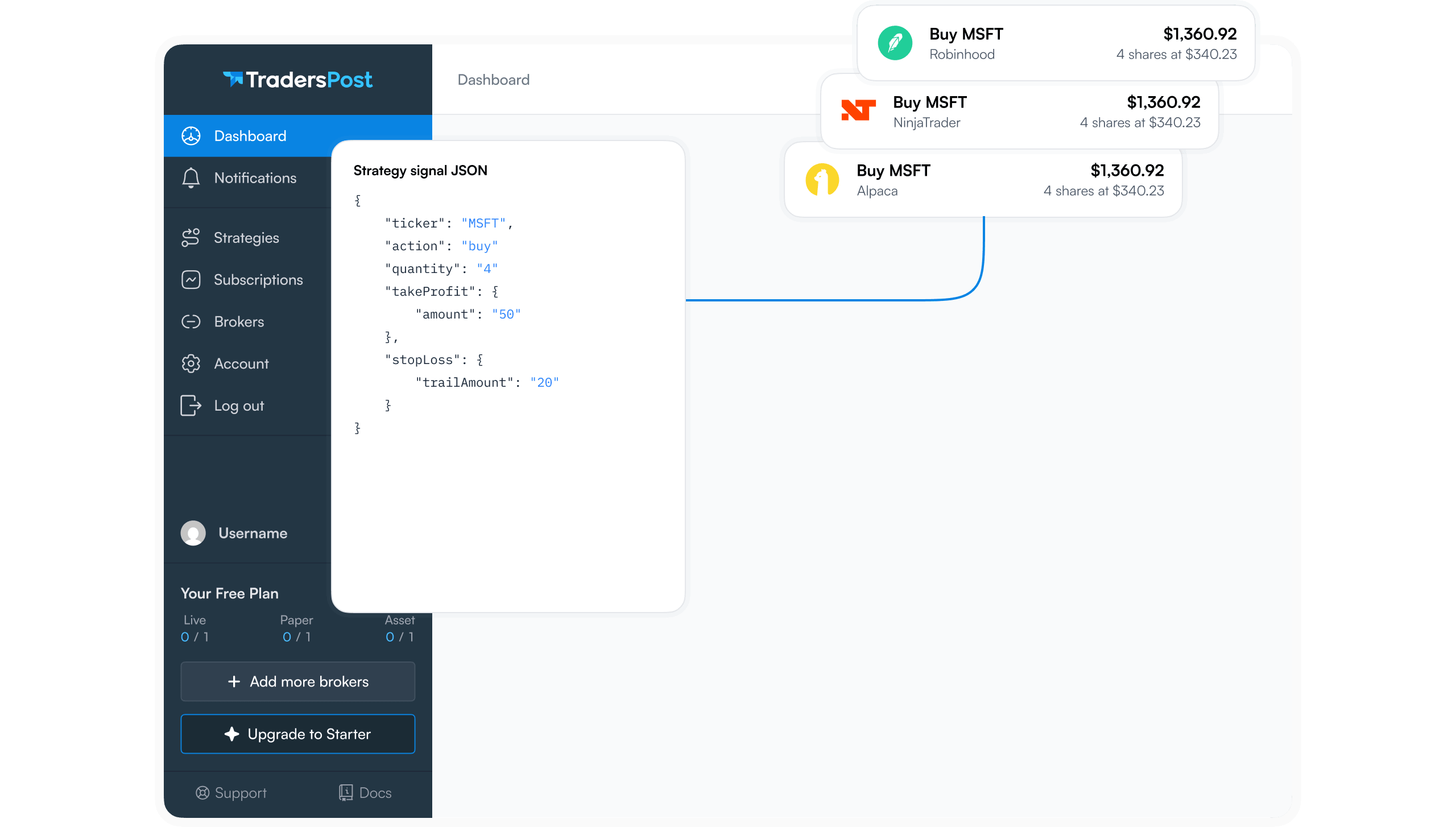
Automate Crypto.com Trading with TradersPost
Connect your Crypto.com account to TradersPost via OAuth or API key and run automated crypto strategies from a single webhook URL. Step-by-step setup guide.

Marketing

Automating crypto trades on Crypto.com starts with a single webhook URL. Once your account is connected to TradersPost, every alert your TradingView strategy fires can route directly to Crypto.com as a live order, with no manual intervention required. This guide walks through every step: account connection, quote currency selection, strategy creation, subscription configuration, and the order types and fees you need to understand before you go live.
The Crypto.com integration is generally available for all TradersPost customers but carries a BETA label, which means edge cases may exist that have not yet been discovered. The practical implication is straightforward: test your signal flow with a paper account before routing real capital through it.
Here is what the integration supports, how to set it up, and what to watch for when you automate crypto.com trading on a market that never closes.
What This Integration Does
Beta Status and Scope
The integration is live-only. There is no paper trading mode on the Crypto.com side, so you cannot use a Crypto.com sandbox account to test your signals. The connection handles only the crypto asset class: stocks, options, and futures are not routed through it.
The beta label is not a reason to avoid the integration, but it is a reason to be methodical. Confirm that symbols resolve, orders are structured correctly, and fills come back before you size up.
What Crypto.com Offers
Crypto.com Exchange provides access to 350+ tradable instruments with sub-10ms execution and 24/7 trading.1 The exchange exposes a REST and WebSocket API (Exchange API v1) that supports spot, derivatives, and margin trading.2 Exchange API v1 is the current version and a superset of the older Derivatives v1 API, so any credentials you created under the older version continue to work.2
Step 1: Connect Your Account
OAuth Connection
OAuth is the fastest connection path. From the TradersPost dashboard, click Connect Broker, choose Crypto.com, and click Connect Live. Then click Login with Crypto.com. You will be redirected to Crypto.com to log in and authorize access, then redirected back automatically. No credentials are pasted into TradersPost at any point.
Manual API Key Connection
If you prefer not to use OAuth, choose Set Access Token and enter your Crypto.com API key and secret manually. Both methods reach the same exchange account. Keep your API secret private: it authenticates order submission on your behalf, and sharing it is equivalent to handing over account access.
Step 2: Choose Your Quote Currency
Supported Quote Currencies
TradersPost supports five quote currencies for Crypto.com: USD, USDT, EUR, PYUSD, and USC. The default you choose determines which trading pairs are available when you build a strategy. Choose deliberately: a strategy built around BTC-USD targets a different pair than BTC-USDT, and mixing them will produce unexpected behavior.
Symbol Formatting
Send symbols as hyphenated pairs in the ticker field of your webhook payload, for example BTC-USD or ETH-USDT. TradersPost converts the hyphen to an underscore (producing BTC_USD) before passing the symbol to the Crypto.com API. You do not need to modify your TradingView alert template to account for this; the conversion is automatic.
Step 3: Create a Crypto Strategy
Strategy Settings for Crypto
A strategy defines the asset class, the allowed tickers, and generates the unique webhook URL you will paste into TradingView or another signal source. Set the asset class to crypto so the strategy routes signals to your Crypto.com connection rather than a stock or futures broker. The webhook URL accepts a JSON payload that must contain at minimum a ticker and action field.
Webhook Payload Basics
A minimal signal looks like this:
{
"ticker": "BTC-USD",
"action": "buy",
"price": "{{close}}",
"time": "{{timenow}}"
}
The price field, populated with the TradingView {{close}} placeholder, lets TradersPost calculate slippage between the alert price and the actual fill. The time field, populated with {{timenow}}, lets TradersPost measure signal-to-execution latency. Both are optional but worth including from the start so you have visibility into execution quality. If you omit quantity, it defaults to 1 unless your subscription settings define a different size.
Step 4: Subscribe and Configure
Linking the Strategy to Crypto.com
A subscription connects one broker account to one strategy and applies account-specific settings such as position size. Each subscription can override signal-level values independently, which means a single signal source can drive multiple accounts at different sizes. You can disable Allow signal override on a per-field basis to fix a setting at the subscription level regardless of what the incoming signal sends.
Position Sizing Options
The quantityType field supports fixed_quantity, dollar_amount, percent_of_equity, and other modes for dynamic sizing. Fractional quantities are supported with up to nine decimal places, which matters for high-priced assets like BTC. Note that shorting is not supported on this connection, so all position sizing applies to long-only entries.
What the Connection Supports
Supported Order Types
The Crypto.com connection accepts market, limit, stop, and stop limit orders. Bracket orders (OCO or OTO) are not supported; the connection is limited to the simple order class only. Trailing stop orders are also not supported on this connection.
Time in Force Options
Supported time-in-force values are GTC (good till canceled), IOC (immediate or cancel), and FOK (fill or kill). Day orders, market-on-open, and market-on-close are not available. If you send an unsupported time-in-force value in your webhook payload, TradersPost falls back to the default configured in your subscription settings.
What Is Not Available
- Shorting: the connection is long-only.
- Paper trading mode: the Crypto.com connection is live-only.
- Account-level metrics: buying power, day P&L, and open P&L are not returned by this connection.
- Trailing stop and bracket orders: neither is supported.
Fees on Crypto.com Exchange
Derivatives Trading Fees
For perpetual and futures contracts, the fee is calculated as: Quantity x Entry Price x Derivatives Trading Fee Rate (%).3 Warrant trading fees use a different formula and are capped at 20% of the warrant purchase cost (premium).3 Fee rates follow a maker/taker tier structure and are subject to change; check the Crypto.com Fees and Limits page for current rates.3
Users who lock up CRO on the exchange can qualify for discounted fees, 0% maker fees, or maker fee rebates depending on the amount locked.3
Liquidation Fees
If a forced liquidation occurs on a derivatives position, an additional fee of 0.50% is charged, and that fee is automatically added to the Insurance Fund rather than returned to the trader.3 Factor this into your risk management: a position that hits forced liquidation carries a cost beyond the loss on the trade itself.
Test Before You Trade Live
Why Beta Status Matters
Because the integration is labeled BETA, edge cases in order routing or symbol handling may surface that have not been found yet. Running a test first lets you confirm that signals arrive, symbols resolve correctly, and orders are structured as expected before real capital is involved.
TradersPost provides its own internal paper broker that supports the crypto asset class. You can connect it, build the same strategy and subscription you plan to use with Crypto.com, and verify that signals flow through correctly without sending any orders to the exchange. Once you are satisfied that everything behaves as expected, swap the subscription to your live Crypto.com connection.
Crypto Runs 24/7
Crypto.com Exchange operates around the clock with no daily session boundaries.1 Signals fired outside traditional market hours, including weekends and overnight, will still attempt execution. Before enabling live automation, review how your TradingView strategy handles weekend candles and overnight bars. A strategy that generates signals continuously may behave differently than one designed around a standard equity session.
Bottom Line
- The Crypto.com integration is live-only and BETA: test with a paper account before routing live size through it.
- Connect with OAuth for the fastest setup, or enter your API key and secret manually. Both reach the same exchange account.
- Choose your default quote currency deliberately. USD and USDT are different pairs, and your strategy must match the pair you intend to trade.
- Send symbols as hyphenated pairs such as BTC-USD in your webhook payload. TradersPost converts them to the underscore format the Crypto.com API expects.
- The connection supports market, limit, stop, and stop limit orders with GTC, IOC, and FOK time-in-force. It is long-only, with no bracket or trailing stop orders.
Frequently Asked Questions
Does the Crypto.com connection support paper trading?
The Crypto.com connection itself is live-only. You can test your signal flow using TradersPost's internal paper broker, which supports the crypto asset class, before switching to the live connection. Paper trading is a simulation, so treat it as a configuration check rather than a performance benchmark.
What symbol format should I use for BTC?
Send the ticker as a hyphenated pair matching your chosen quote currency: BTC-USD or BTC-USDT, for example, in the ticker field of your webhook JSON. The hyphen is converted to an underscore automatically before the order reaches the Crypto.com API.
Can I short crypto through this connection?
No. Shorting is not supported on the Crypto.com connection. If your strategy sends a bearish or sell signal while you have no open position, it will not open a short.
Which order types can I send to Crypto.com?
The connection supports market, limit, stop, and stop limit orders. Trailing stop and bracket orders (OCO or OTO) are not supported. Supported time-in-force values are GTC, IOC, and FOK; day orders are not available.
How are Crypto.com trading fees calculated?
For perpetual and futures contracts, the fee equals Quantity x Entry Price x the applicable derivatives trading fee rate.3 Rates follow a tiered maker/taker structure and can change; check the Crypto.com Fees and Limits page for current figures. Locking CRO on the exchange can reduce fees or provide maker fee rebates depending on the amount locked.3
References
1 Crypto.com Exchange
2 Crypto.com Exchange API v1 REST Introduction
3 Crypto.com Applicable Fees