How to Automate NinjaTrader with TradersPost
NinjaTrader automation on TradersPost runs through the Tradovate connection. Learn setup steps, supported order types, market data limits, and troubleshooting.

Marketing

To automate NinjaTrader with TradersPost, you don't connect through a NinjaTrader entry in the broker list. You connect through Tradovate, using your existing NinjaTrader username and password. The connection works because NinjaTrader acquired Tradovate in January 2022 and the two platforms share a single brokerage account system.1
This article covers exactly how to set up that connection, what asset classes and order types are available, why you must include a price field in every non-market signal, and what to do when something goes wrong. If you have a NinjaTrader brokerage account and want to route automated signals from TradingView or another source, everything you need is here.
No Separate NinjaTrader Connection
Why Tradovate Powers NinjaTrader
TradersPost does not list NinjaTrader as a standalone broker option. When you browse the broker connection page, you will find a Tradovate entry, and that is the one to select. Enter your NinjaTrader username and password at the Tradovate OAuth prompt and authentication succeeds because the account systems are shared.
The 2022 Acquisition Explained
NinjaTrader Group announced the acquisition of Tradovate Holdings on January 12, 2022, describing the deal as combining the largest and fastest-growing retail futures market leaders.1 The price was $115 million.1 Tradovate had pioneered a cloud-based trading infrastructure for futures; after the acquisition, that infrastructure became part of the NinjaTrader group of companies.1
The practical consequence for traders is that NinjaTrader Clearing, LLC now operates Tradovate as a trade name under the same regulated entity that handles brokerage services for both brands. Your NinjaTrader login is a valid Tradovate login, and that is why the Tradovate connection in TradersPost grants access to a NinjaTrader brokerage account.
Connecting Your NinjaTrader Account
Step-by-Step Connection
In TradersPost, navigate to the broker connection page and select Tradovate as the broker. There is no separate NinjaTrader entry in the list. At the Tradovate OAuth prompt, enter your NinjaTrader username and password. After authorizing, TradersPost redirects you back and your NinjaTrader-backed account appears as a connected Tradovate account.
The Two-Factor Email Requirement
After completing the OAuth flow, Tradovate sends a two-factor authentication email to the address on your account. You must click the approval link in that email before live orders can be routed. Skipping this step causes a 401 Access Denied error on every live order attempt. Check your spam folder if the email does not arrive promptly, and complete this step before running any live strategy.
Live vs. Paper Mode
The Tradovate connection supports both live and paper trading modes. Tradovate's paper environment provides real-time order fills but no market data feed. Selecting the correct account type during broker setup matters: choosing a live account when you intend to paper trade, or vice versa, is one of the most common setup mistakes. Confirm the account type shown on the broker connection settings page before sending any signals.
Where Your Signals Come From
TradingView Alerts via Webhooks
The most common signal source is a TradingView alert that fires a webhook payload when a Pine Script condition is met. The payload must include at minimum a ticker and an action field. For futures where no market data is available through the broker connection, including a price field is also required. TradingView's {{close}} placeholder is a practical way to populate the price field automatically at alert time without hardcoding a value.
Other Signal Sources
Any system capable of sending an HTTP POST with a JSON body can send signals: custom scripts, TrendSpider alerts, or third-party bots all work. The payload structure is identical regardless of source. One detail worth noting on ticker format: continuous symbols like NQ1! are automatically mapped to the front-month contract according to TradersPost's rollover schedule, which may differ from TradingView's. Using explicit contract symbols avoids any mismatch between platforms.
What You Can Trade
Futures Only
The Tradovate connection supports only the futures asset class. Stocks, options, and crypto are not available through this connection. Common instruments include equity index futures such as NQ and ES, as well as commodity and energy contracts available on Tradovate. Both long and short directions are supported, so strategies that take positions on both sides can be automated without restriction.
Supported Order Types
The connection supports market, limit, stop, stop-limit, and trailing stop order types. Order classes include simple, bracket, and OTO (one-triggers-other), which lets you attach take-profit and stop-loss legs directly to an entry order. Time-in-force options include day, GTC, FOK, and IOC. If you send an unsupported time-in-force in the payload, TradersPost falls back to the default configured in the strategy subscription settings.
The Market Data Gap
Why Tradovate Has No Market Data
The Tradovate connection has its market data source set to disabled, meaning TradersPost cannot fetch live quotes through this broker connection. Without an available quote, TradersPost cannot estimate a price for market orders or display live profit and loss on open positions. This is a broker API limitation, not a configuration choice.
Sending Price in Your Webhook
Because no quote is available, any signal that requires a price reference must include the price field in the webhook payload. For TradingView alerts, inserting {{close}} as the price value ensures the bar's closing price travels with the signal. Limit orders should include an explicit limitPrice field; stop orders should include a stopPrice field so no market price lookup is needed at execution time.
No Live P&L on Open Positions
Because Tradovate's API does not supply market data, open position profit and loss figures will not update in real time within TradersPost. The average entry price for an open position is available, but a live mark-to-market value is not. Traders who need live P&L visibility should monitor positions directly in the NinjaTrader or Tradovate platform.
Paper Trading Before Going Live
Use Tradovate's Simulated Environment
Tradovate provides a paper trading environment with real-time order fills, making it a closer simulation of live execution than a generic paper broker. Selecting the Tradovate paper account routes test signals to the simulated environment without touching a live account. The same market data limitation applies in paper mode: include a price in your payload even during testing, because the broker cannot look one up.
What Paper Trading Validates
Paper runs confirm that your webhook payload is correctly structured and that TradersPost is receiving and parsing the signal as intended. They also verify that order types and bracket configurations are accepted by Tradovate before real capital is at risk. Paper trading does not replicate the slippage or liquidity conditions of live markets, so execution quality may differ when you switch to a live account.
Once paper testing confirms that signals are routing correctly and orders are being accepted with the right structure, you are ready to connect a live Tradovate account and run a test signal against it. Start with a single contract and review the signal log to confirm the broker response before enabling auto-submit on the full strategy.
Troubleshooting Common Failures
401 Access Denied on Live Orders
This error almost always means the two-factor authentication email from Tradovate was not approved after the initial connection. Return to your inbox, find the Tradovate authorization message, and click the confirmation link. After approving, retry the signal. If the error persists, disconnect and reconnect the broker to trigger a fresh two-factor email.
Orders Rejected for Missing Price
If a limit or stop order arrives without a limitPrice or stopPrice, TradersPost attempts to fetch a market quote. With Tradovate, that fetch returns nothing, and the order may be rejected or fall back to a market order. Always include the relevant price field explicitly in the payload for any non-market order type. TradersPost logs every incoming signal and the broker response, so checking the signal log is the fastest way to see the exact payload received and the error returned by Tradovate.
Wrong Account Selected
A common mistake is selecting a live account when intending to paper trade, or vice versa. Verify the account type shown on the broker connection settings page before running any strategy. If futures are not appearing as a supported asset class on the connection, confirm that the selected account is a futures account and not a different account type.
Putting It All Together
A Minimal Working Payload
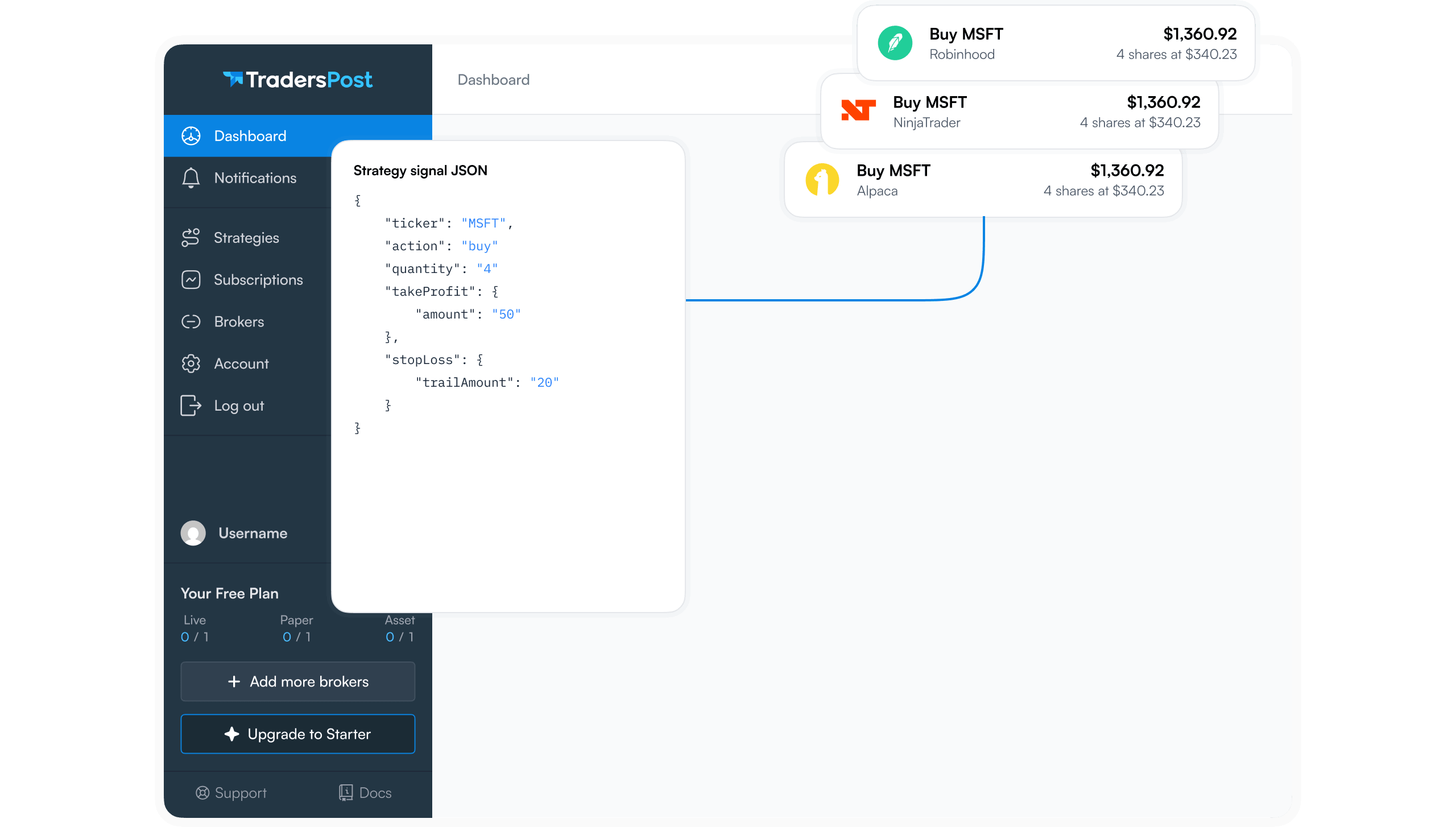
A minimal futures signal requires ticker, action, and price fields. The ticker should be an explicit contract symbol, action should be buy or sell, and price should be the current market price from your signal source. Adding quantity, orderType, and a stopLoss object with a stopPrice gives TradersPost enough information to route a complete bracketed futures order without any quote lookup. Test the payload against the Tradovate paper account before enabling auto-submit on a live account.
Bottom Line Takeaways
- NinjaTrader automation runs through the Tradovate connection because NinjaTrader acquired Tradovate in January 20221 and the two share one account system.
- The connection covers futures only and supports market, limit, stop, stop-limit, trailing stop, bracket, and OTO orders.
- Tradovate provides no market data through its API, so every signal that needs a price must carry one explicitly using the
price,limitPrice, orstopPricefield. - Approve the two-factor email immediately after connecting, or live orders will return a 401 error.
- Paper trade first using Tradovate's simulated environment to confirm payload structure and order configuration before going live.
Frequently Asked Questions
Why is there no NinjaTrader option in the broker list?
TradersPost routes NinjaTrader accounts through the Tradovate broker connection because NinjaTrader acquired Tradovate in January 20221 and the two now operate under the same brokerage entity. Your NinjaTrader username and password are valid Tradovate credentials, so selecting Tradovate and entering NinjaTrader login details completes the connection.
Can I trade stocks or options through NinjaTrader on TradersPost?
No. The Tradovate connection supports the futures asset class only; stocks, options, and crypto are not available through this connection. For stock or options automation, a different broker connection such as TradeStation or Alpaca would be required.
Why can't I see live P&L on my open futures positions?
Tradovate's API does not supply market data to TradersPost, so there is no live price feed available to mark open positions to market. Average entry price for open positions is available, but real-time profit and loss must be monitored directly in the NinjaTrader or Tradovate platform.
What causes the 401 Access Denied error on live orders?
This error occurs when the two-factor authentication email sent by Tradovate after the initial connection was not confirmed. Find the authorization email from Tradovate, click the confirmation link, and retry your signal. If the error continues, disconnect and reconnect the broker to trigger a new two-factor email.
Do I need a price field in every webhook signal?
For any order type that requires a reference price (limit, stop, stop-limit, or trailing stop), yes. Tradovate does not provide market data to TradersPost, so the platform cannot look up a current price on its own. For pure market orders, the price field is still recommended to enable slippage tracking in the signal log, even though it is not strictly required for order routing.