Understanding Ticker Placeholders in Automation
Learn how ticker placeholders work in automated trading and how to properly configure signal payloads for reliable strategy execution.

Marketing

-
Traders ask what strategy placeholders represent, so the guidance now distinguishes current position size, executed order quantity and direction, and subscription quantity overrides.
Understanding how signal placeholders work is fundamental to successful trading automation. This guide explains how ticker transformation happens between TradingView strategies and broker execution, ensuring your automated signals execute correctly.
The Placeholder System
What Are Placeholders
Placeholders are variables in your alert messages that get replaced with actual values when the alert fires. The most common placeholder, {{ticker}}, automatically inserts the symbol of the chart that triggered the alert.
When you create an alert on a Tesla chart using {{ticker}}, the placeholder gets replaced with "TSLA" when the alert message sends to TradersPost. This automatic substitution enables you to use the same alert configuration across multiple instruments.
Strategy Position Placeholders
TradingView strategies provide additional placeholders that communicate strategy state. The {{strategy.position_size}} placeholder reports the strategy's current position size1.
When position size is positive, the strategy is long. When negative, it's short. When zero, no position is open. This information enables dynamic message construction that adapts to strategy state.
Signal Translation Process
From Strategy to Alert
When your TradingView strategy generates a signal, it passes information about the intended trade to the alert system. The strategy tester knows whether it wants to go long, short, or exit a position.
The alert message template uses placeholders to capture this intent. These placeholders get evaluated using the strategy's current state when the alert fires. The {{strategy.order.action}} placeholder is replaced with buy or sell for the order that triggered the alert. It identifies the executed order direction rather than the resulting strategy position1.
From Alert to TradersPost
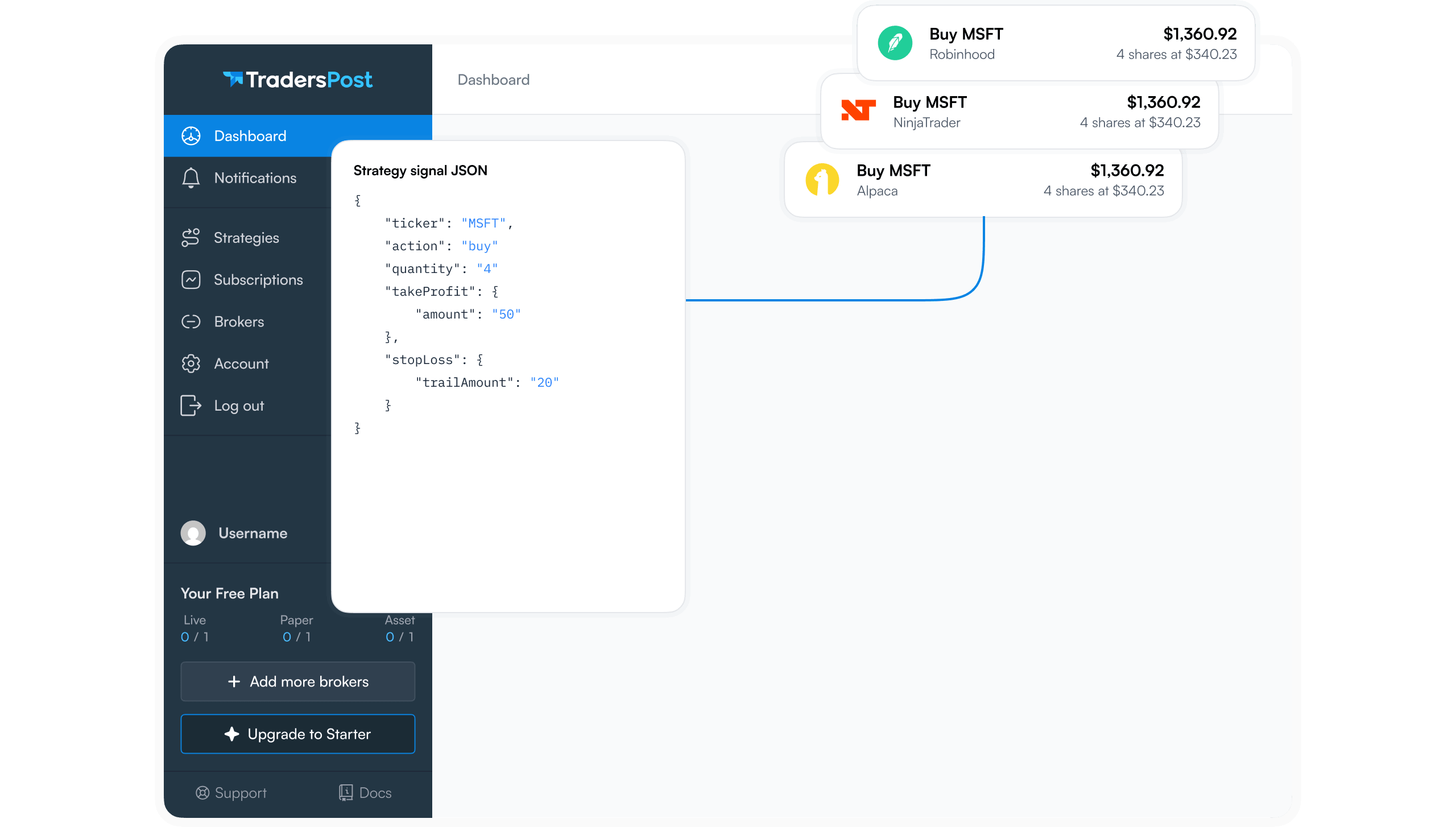
Once placeholders are replaced with actual values, the complete message sends via webhook to TradersPost. TradersPost receives a fully-formed instruction like:
` { "ticker": "TSLA", "action": "buy", "sentiment": "bullish", "quantity": 10 } `
This transformed message contains no placeholders, only concrete values that TradersPost can execute.
From TradersPost to Broker
TradersPost receives the transformed message, validates it against your strategy configuration, calculates position sizing if needed, and sends the appropriate order to your connected broker.
Position Size Translation
Strategy Contract Size
TradingView strategies operate in contracts. If your strategy settings specify position size of 10, strategy orders can use 10 contracts, but subscription override settings can apply or ignore the signal quantity2. The strategy displays this clearly in the strategy tester panel.
Quantity Placeholder Usage
The {{strategy.order.contracts}} placeholder communicates the number of contracts in the executed order3. This can be useful when you want signal quantity to control position size rather than subscription settings.
However, be cautious with this approach, as the contract size in TradingView may not match the position sizing appropriate for your live account.
Message Field Requirements
Ticker Field
Always include a ticker field to specify which instrument to trade. While TradersPost can infer the ticker from your subscription settings in some cases, explicitly including it prevents ambiguity.
Action Field
The action field tells TradersPost what to do: buy, sell, or exit. Make sure this field accurately reflects your strategy's intent using appropriate placeholder logic.
Sentiment Field
The sentiment field provides additional context about trade direction. Use "bullish" for long positions, "bearish" for short positions, and "flat" for exits to no position.
Optional Fields
Additional fields like quantity, price, and order type can enhance your automation but aren't always necessary. TradersPost can use subscription settings to fill in missing details.
Testing Your Placeholders
Using Send Request Feature
TradersPost's webhook page includes a Send Request feature that lets you manually trigger test signals. Use this to verify your placeholder logic works correctly before relying on it in live trading.
Send test requests with different ticker values and verify that TradersPost interprets your message as intended. Check the signal log to see how the message was processed.
Verifying Transformation
After creating alerts with placeholders, trigger a test alert and check what message actually arrived at TradersPost. The signal details page shows the exact JSON received, confirming your placeholders transformed correctly.
Troubleshooting Common Issues
Wrong Direction Trades
If your automation takes the opposite direction from intended, check your action placeholder logic. Ensure the conditional statement correctly maps positive position sizes to buy and negative to sell (or vice versa based on your strategy logic).
Missing Ticker Information
If orders get rejected due to missing ticker information, verify that {{ticker}} appears in your message template and that your TradingView chart displays the exact symbol your broker recognizes.
Quantity Mismatches
When executed position sizes don't match expectations, determine whether your subscription is set to use signal quantity or subscription position sizing. Mismatched settings create confusion between intended and actual position sizes.
Key Takeaways
Placeholder understanding is essential for reliable trading automation. The transformation from strategy signal to executed order involves multiple stages where placeholders get replaced with actual values based on strategy state and chart context.
Always use the strategy payload format when automating TradingView strategies, verify your placeholder logic through testing, and monitor your signal logs to confirm transformations happen as expected. Proper placeholder configuration ensures your automation executes trades that match your strategy's intentions across all market conditions and instruments.
References
1 tradingview.com, Strategy Alerts
2 docs.traderspost.io, Signals
3 tradingview.com, How to use a variable value in alert