How to Automate Pine Script Strategies
How to automate your Pine Script v6 strategies with TradersPost webhooks, from alert setup to live broker execution with supported brokers.

Marketing

Bottom Line
- TradersPost connects TradingView Pine Script v6 strategies to live broker accounts through webhook-based automation
- v6 features like enums for clean settings and runtime logging for debugging make strategies more automation-ready
- Set up alerts with JSON webhook payloads containing ticker action and optional quantity for automated execution
- TradersPost supports major brokers including Tradovate Alpaca Interactive Brokers and Robinhood for automated trading
-
Traders ask how automation settings and TradingView controls work, so the guidance now clarifies quantity handling, paper trading support, and chart interval shortcuts.
Pine Script v6 strategies can do more than generate backtest results on a chart. When connected to TradersPost, every entry and exit signal your strategy produces can automatically execute as a real trade on your broker account1. No copy-pasting signals. No watching charts all day. Your strategy runs on TradingView, fires an alert, and TradersPost routes the order to your broker in seconds.
This guide covers the complete pipeline from writing an automation-ready v6 strategy to executing live trades through TradersPost, including v6-specific features that make your strategies easier to configure, debug, and maintain in production.
Why Automate Pine Script Strategies
Manual trading introduces three problems that automation eliminates. First, you miss signals. Markets move while you sleep, commute, or work. A strategy that generates a signal at 2:47 AM does you no good if you see it at 8:00 AM. Second, you hesitate. Even when you see a signal in real time, emotions interfere. You second-guess the entry, delay the exit, or skip the trade entirely. Third, you make mistakes. Entering the wrong quantity, selecting the wrong symbol, or clicking buy instead of sell are human errors that automation prevents.
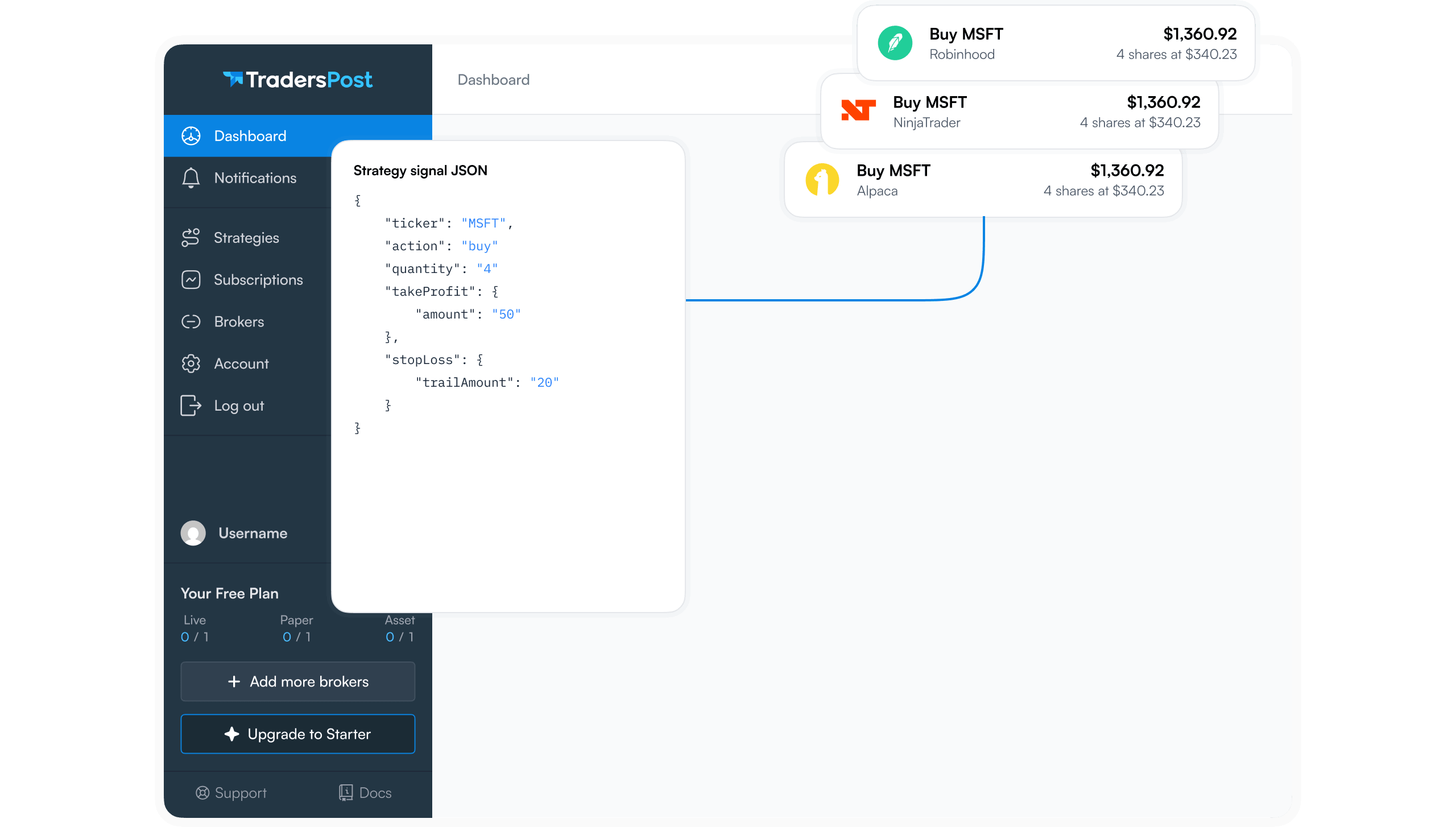
TradersPost solves all three by acting as the bridge between your TradingView strategy and your broker. The strategy generates signals. TradingView sends them as webhook alerts. TradersPost receives the webhooks and places the corresponding orders at your broker. The entire chain runs without manual intervention.
How TradersPost Works
The automation flow has four components that work together.
TradingView Strategy
Your Pine Script v6 strategy runs on TradingView's servers. Every time a bar closes and your strategy calls strategy.entry(), strategy.exit(), or strategy.close(), TradingView evaluates whether to fire the alert you configured.
TradingView Alert
You create an alert on TradingView tied to your strategy. The alert includes a webhook URL (provided by TradersPost) and a JSON message payload that describes the trade action. When the strategy triggers, TradingView sends this payload to the webhook URL.
TradersPost Webhook
TradersPost receives the webhook, validates the payload, and maps the signal to your configured trading rules. You can set position size limits, restrict trading hours, enable or disable specific actions, and apply other risk controls at this layer.
Broker Execution
TradersPost sends the order to your connected broker account. The order executes according to the broker's rules, and TradersPost logs the result for your review.
Writing an Automation-Ready v6 Strategy
Not every strategy that backtests well is ready for automation. Here is a v6 strategy built specifically for automated execution with TradersPost.
//@version=6
strategy("Automated EMA Cross", overlay = true, default_qty_type = strategy.percent_of_equity, default_qty_value = 100)

// Use enums for clean input settings
enum TrendFilter
    none   = "No Filter"
    sma200 = "Above 200 SMA"
    ema50  = "Above 50 EMA"

TrendFilter filterType = input.enum(TrendFilter.sma200, "Trend Filter")

int fastLen = input.int(9, "Fast EMA Length", minval = 1)
int slowLen = input.int(21, "Slow EMA Length", minval = 1)

// Calculate indicators
float fastEMA = ta.ema(close, fastLen)
float slowEMA = ta.ema(close, slowLen)

// Calculate trend filter
float filterMA = switch filterType
    TrendFilter.sma200 => ta.sma(close, 200)
    TrendFilter.ema50  => ta.ema(close, 50)
    => na

bool trendOK = na(filterMA) or close > filterMA

// Entry and exit logic
bool longEntry = ta.crossover(fastEMA, slowEMA) and trendOK
bool longExit = ta.crossunder(fastEMA, slowEMA)

if longEntry
    strategy.entry("Long", strategy.long)

if longExit
    strategy.close("Long")

// Plots
plot(fastEMA, "Fast EMA", color.green, 2)
plot(slowEMA, "Slow EMA", color.red, 2, linestyle = plot.linestyle_dashed)
This strategy uses several v6 features that improve the automation experience. The enum input creates a clean dropdown in the strategy settings instead of a string input with manual validation2. The switch statement handles the enum matching. And the dashed linestyle on the slow EMA provides clear visual feedback when monitoring the strategy on the chart3.
Key Design Decisions
Several aspects of this strategy make it automation-friendly:
- default_qty_type and default_qty_value: these set a default position size so every signal includes quantity information
- Clear entry and exit IDs: "Long" is used consistently for both strategy.entry() and strategy.close(), ensuring TradersPost can match entries to exits
- No repainting: the strategy uses confirmed bar closes for all signal generation, preventing false signals on live data
- Simple logic: fewer conditions mean fewer edge cases in live execution
Setting Up the Alert
With your strategy on a TradingView chart, create an alert that sends signals to TradersPost.
Step 1: Get Your Webhook URL
Log in to TradersPost and create a new webhook. TradersPost generates a unique URL for this webhook. Copy it. This URL is where TradingView will send the trade signals.
Step 2: Create the TradingView Alert
On TradingView, right-click the chart or use the Alerts panel to create a new alert. Set the condition to your strategy (for example, "Automated EMA Cross"). Under Notifications, enable "Webhook URL" and paste the URL from TradersPost.
Step 3: Configure the Alert Message
The alert message is a JSON payload that TradersPost parses to determine what trade to place. A basic payload looks like this:
{
    "ticker": "{{ticker}}",
    "action": "{{strategy.order.action}}",
    "sentiment": "{{strategy.market_position}}",
    "quantity": "{{strategy.order.contracts}}"
}
TradingView replaces the double-brace placeholders with actual values when the alert fires. The ticker field contains the symbol. The action field contains "buy" or "sell". The sentiment field contains "long", "short", or "flat". The quantity field contains the number of shares or contracts.
Understanding the Payload Fields
Each field in the webhook payload serves a specific purpose in the TradersPost execution flow:
- ticker: tells TradersPost which symbol to trade. It uses the TradingView ticker format, which TradersPost maps to the correct symbol at your broker
- action: either "buy" or "sell", indicating the order direction
- sentiment: the desired position after the trade executes. "long" means you want to be long, "short" means short, "flat" means no position. This helps TradersPost handle partial fills and position reconciliation
- quantity: the number of contracts or shares. You can omit this to have TradersPost calculate quantity from the strategy subscription configuration when possible; otherwise, the order defaults to quantity 1. A signal-supplied quantity is used only when Allow signal override is enabled6
v6 Features That Improve Automation
Pine Script v6 introduces several features that make strategies more robust for automated execution.
Enums for Clean Configuration
The enum type replaces string-based input options with structured, type-safe selections2. When you use input.enum() instead of input.string() with a list of options, the Pine Script compiler catches typos at compile time instead of letting them cause runtime issues4.
//@version=6
strategy("Enum Config Example", overlay = true)

enum OrderType
    market = "Market Order"
    limit  = "Limit Order"

enum RiskLevel
    conservative = "Conservative (1%)"
    moderate     = "Moderate (2%)"
    aggressive   = "Aggressive (5%)"

OrderType orderType = input.enum(OrderType.market, "Order Type")
RiskLevel riskLevel = input.enum(RiskLevel.conservative, "Risk Level")

float riskPct = switch riskLevel
    RiskLevel.conservative => 1.0
    RiskLevel.moderate     => 2.0
    RiskLevel.aggressive   => 5.0

float positionSize = strategy.equity * (riskPct / 100) / ta.atr(14)

if ta.crossover(ta.ema(close, 9), ta.ema(close, 21))
    strategy.entry("Long", strategy.long, qty = positionSize)
The dropdown inputs created by input.enum() are cleaner than string inputs and prevent invalid selections4. When sharing strategies with other traders or switching settings before deploying to TradersPost, enum inputs reduce configuration errors.
Runtime Logging for Debugging
Pine Script v6 adds the log.info(), log.warning(), and log.error() functions3. These write messages to the Pine Logs pane, which is invaluable for debugging automated strategies in production2.
//@version=6
strategy("Logged Strategy", overlay = true)

float fastEMA = ta.ema(close, 9)
float slowEMA = ta.ema(close, 21)

if ta.crossover(fastEMA, slowEMA)
    strategy.entry("Long", strategy.long)
    log.info("ENTRY: Long at {0} | Fast EMA: {1} | Slow EMA: {2}",
         close, fastEMA, slowEMA)

if ta.crossunder(fastEMA, slowEMA)
    strategy.close("Long")
    log.warning("EXIT: Close Long at {0} | Fast EMA: {1} | Slow EMA: {2}",
         close, fastEMA, slowEMA)

if strategy.opentrades > 0
    float entryPrice = strategy.opentrades.entry_price(0)
    float unrealizedPnL = strategy.opentrades.profit(0)
    log.info("OPEN TRADE: Entry {0} | Unrealized P&L: {1}",
         entryPrice, unrealizedPnL)
When your automated strategy fires a signal and TradersPost places the trade, the Pine Logs show exactly what conditions triggered the signal. If a trade seems unexpected, you can review the logs to see the indicator values at the time the signal was generated. This is far more efficient than adding plot() statements and reading values off the chart. To change the chart interval quickly, type a number and press Enter, such as 125 for a 125-minute interval. You can also use D, W, and M suffixes for days, weeks, and months, such as 12D, 1W, or 3M7.
Logs persist across bars during both historical and realtime execution. On realtime bars, log messages are created for every available tick and are not subject to rollback5, which means you can monitor the full decision-making process of your strategy as it evaluates incoming data.
Dynamic Requests for Multi-Symbol Strategies
In v6, request.security() accepts series string arguments for the symbol and timeframe parameters2. This means a single strategy can dynamically change which symbol it requests data from based on runtime conditions3.
//@version=6
strategy("Dynamic Symbol Strategy", overlay = true)

string symbols = input.text_area("AAPL\nMSFT\nGOOGL", "Symbols (one per line)")

string currentSymbol = array.get(str.split(symbols, "\n"), bar_index % 3)

float otherClose = request.security(currentSymbol, timeframe.period, close,
     ignore_invalid_symbol = true)

if not na(otherClose)
    float ratio = close / otherClose
    if ta.crossover(ratio, ta.sma(ratio, 20))
        log.info("Ratio breakout vs {0}: {1}", currentSymbol, ratio)
While this specific example is simplified, the dynamic request capability opens the door to rotation strategies, pairs trading systems, and multi-asset scanners that were not possible in v54. When combined with TradersPost automation, a single strategy can generate signals for different symbols based on real-time conditions1.
Supported Brokers
TradersPost connects to a wide range of brokers for automated execution1. The broker you choose depends on what asset classes you trade and your geographic location.
- Tradovate: futures trading with support for micro contracts like MES, MNQ, and MYM1
- Alpaca: commission-free stock and ETF trading with a straightforward API1
- Interactive Brokers: stock trading1
- Robinhood: stock and options trading with a consumer-friendly interface1
- TradeStation: stocks, options, and futures with advanced order routing1
- Coinbase: cryptocurrency trading for major digital assets1
Each broker integration handles the translation from TradersPost's standardized order format to the broker's specific API requirements1. You write your strategy once, configure it in TradersPost, and the platform handles the execution details for your chosen broker.
Paper Trading First
Before connecting a v6 strategy to a live broker account, run it in paper trading mode. TradersPost offers paper trading for most connected brokers, and TradingView provides its own paper trading functionality within the strategy tester8.
Why Paper Trading Matters
Paper trading catches problems that backtesting cannot reveal:
- Signal timing: live alerts fire at bar close, not at the prices you see in backtesting. Paper trading shows you the actual prices at which signals are generated
- Webhook delivery: TradingView occasionally delays webhook delivery under heavy load. Paper trading reveals whether your signals arrive at TradersPost consistently
- Position management: automated strategies sometimes generate unexpected signals during partial fills, connection drops, or broker rejections. Paper trading exposes these edge cases without financial risk
- Configuration errors: incorrect webhook URLs, malformed JSON payloads, or mismatched symbol mappings are caught during paper trading before they cost you money
Paper Trading Checklist
Run your strategy in paper mode for at least two weeks before going live. During this period, verify the following:
- Every strategy signal generates a corresponding TradingView alert
- Every alert delivers a webhook to TradersPost within a reasonable time window
- TradersPost correctly interprets the webhook payload and places the intended order
- Position sizes match your expectations
- Exit signals properly close open positions
- The strategy handles overnight gaps and session boundaries correctly
Common Troubleshooting
When automation is not working as expected, these are the most common issues and their solutions.
Alerts Not Firing
The most common cause is that the alert condition is set to "Once Per Bar Close" but your strategy generates signals mid-bar. For automated trading, always use "Once Per Bar Close" to match your backtest behavior. If alerts stop firing entirely, check that your TradingView plan supports the number of active alerts you have configured.
Webhook Not Received
Verify that the webhook URL in your TradingView alert exactly matches the URL from TradersPost. A single extra character or missing trailing slash can cause delivery failures. Check the TradersPost webhook log to see if the payload was received but rejected due to formatting issues.
Wrong Position Size
If TradersPost is placing trades with unexpected quantities, check three places. First, verify the quantity value in your webhook payload. Second, check your TradersPost subscription settings for any position size overrides. Third, confirm that your strategy's default_qty_type and default_qty_value produce the correct sizes in the strategy tester.
Duplicate Signals
If your strategy generates duplicate entry signals while already in a position, the strategy.entry() function in Pine Script handles this by modifying the existing order rather than creating a new one3. However, TradersPost may interpret duplicate webhooks as new signals. Use the sentiment field in your webhook payload to help TradersPost understand your intended position state1.
Getting Started with TradersPost
Setting up automated trading with TradersPost takes about 15 minutes once your strategy is ready.
- Create a TradersPost account at traderspost.io
- Connect your broker account through the TradersPost dashboard
- Create a webhook and copy the URL
- Add the webhook URL to your TradingView alert
- Configure your alert message with the JSON payload format shown above
- Start with paper trading to verify the full pipeline
- Switch to live trading when you are confident in the setup
Pine Script v6 strategies combined with TradersPost automation give you a complete system for developing, testing, and executing trading strategies. The v6 improvements in enums, logging, and dynamic requests make your strategies more maintainable and easier to debug in production2. TradersPost handles the execution layer so you can focus on strategy development rather than broker API integration1.
Whether you are automating a simple EMA crossover or a complex multi-symbol rotation system, the combination of TradingView's strategy engine and TradersPost's execution infrastructure provides everything you need to take your Pine Script strategies from backtest to live trading.
References
1 TradersPost - Automated Trading Platform
2 Pine Script Release Notes
3 Pine Script v6 Language Reference
4 Pine Script v5 to v6 Migration Guide
5 Pine Script User Manual
6 docs.traderspost.io, Order Behavior
7 tradingview.com, How to change the time frame quickly
8 docs.traderspost.io, Paper Trading