Automate TradingView AI Alerts
Learn how to connect TradingView AI Chart Copilot insights to automated trade execution using TradersPost webhooks, step by step.

Marketing

Bottom Line
- TradingView AI Chart Copilot can analyze charts and create alerts conversationally, but it cannot execute trades on its own.
- TradersPost bridges the gap by receiving TradingView webhook alerts and routing orders to brokers like Alpaca, TradeStation, Interactive Brokers, Tradier, and Robinhood.
- Always paper trade automated AI-driven strategies before committing real capital to verify signal quality and execution reliability.
- Combining multiple AI features such as Chart Copilot analysis, AI news alerts, and AI document summaries can strengthen trade confirmation workflows.
- AI-generated analysis is not financial advice and past signals do not guarantee future results.
-
TradersPost now offers seven days of free paper trading before a paid subscription is required for live trading, so the unrestricted free-plan claim has been corrected while the automation workflow remains accurate.
TradingView's AI tools can read your charts, summarize news, and surface technical signals in seconds. But there is one thing they cannot do: execute a trade. That gap between insight and action is where opportunities slip away. If you want to automate TradingView AI alerts so that analysis flows directly into live or paper trade execution, you need a bridge. TradersPost provides that bridge by turning TradingView webhook alerts into broker orders automatically1.
This step-by-step tutorial walks through the entire workflow, from asking AI Chart Copilot for analysis to receiving executed trades in your brokerage account. Whether you are new to automation or looking to layer AI-driven signals into an existing system, this guide covers the setup, configuration, and best practices you need.
The Problem: AI Insights Without Execution
TradingView has rolled out several AI-powered features in recent months. AI Chart Copilot reads your active chart and provides technical analysis through a conversational interface2. AI-powered news summarizes market events and earnings reports in real time3. AI documents let you upload PDFs and filings for instant summarization. Together, these tools compress hours of research into minutes.
The limitation is that none of these AI features can place an order. They generate analysis, not execution. A trader who spots a bullish RSI divergence through Chart Copilot still needs to manually open a position, set a stop loss, and manage the trade. During fast-moving markets, that manual step introduces delay, emotional interference, and the risk of missed entries.
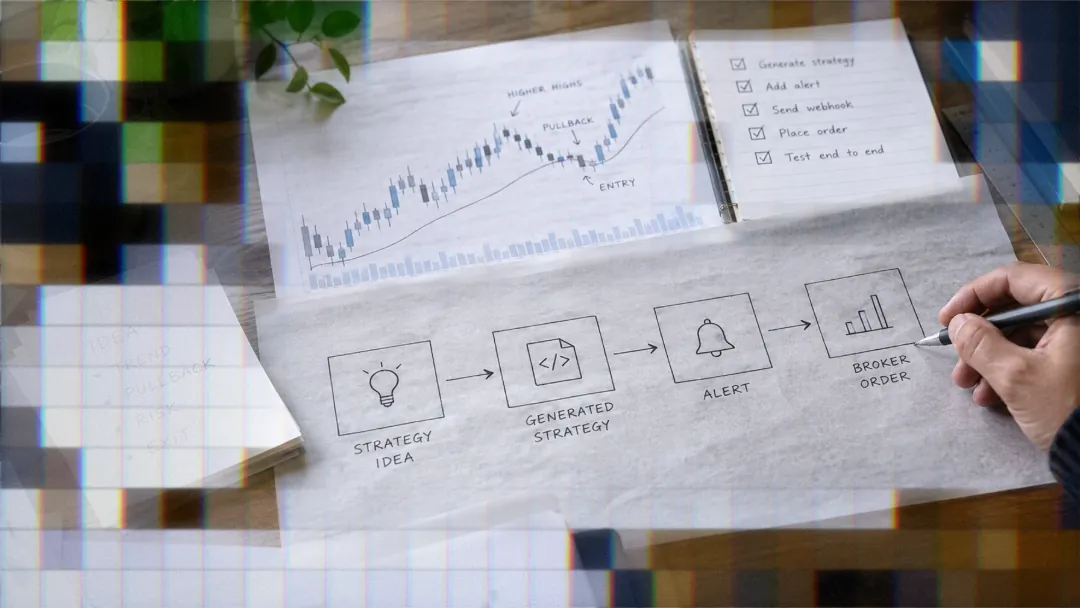
The solution is a two-part workflow. Use TradingView's AI tools to generate and refine your analysis, then connect the resulting alerts to TradersPost for automated execution through webhooks1. The rest of this guide shows you how.
Step 1: Use AI Chart Copilot for Analysis
AI Chart Copilot is a conversational assistant built into TradingView that reads the current state of your chart, including the timeframe, indicators, and drawing tools you have applied2. It is available through the AI panel on TradingView's charting interface.
To get started, open a chart for the symbol you want to analyze and add any indicators you normally use, such as RSI, MACD, or moving averages. Then open Chart Copilot and type a natural language prompt. Effective prompts include:
- "Analyze AAPL for bullish signals on the 4-hour chart"
- "What is the RSI divergence situation on SPY right now?"
- "Summarize the current trend and support/resistance levels for TSLA"
- "Is there a MACD crossover forming on QQQ daily?"
Copilot responds with a written analysis referencing the actual data on your chart. It can identify patterns, describe indicator readings, and highlight potential trade setups2. The key advantage over static screeners is that Copilot's analysis reflects your specific chart configuration, not a generic overview.
Use this step to form a thesis. If Copilot identifies a setup worth trading, the next step is to create an alert that fires when the conditions are met.
Step 2: Create Alerts via AI Copilot
One of Chart Copilot's most practical features is the ability to create TradingView alerts through conversational commands. Instead of manually navigating the alert creation dialog and configuring conditions field by field, you can describe what you want in plain language2.
Example prompts for alert creation:
- "Create an alert when RSI crosses above 30 on AAPL"
- "Set an alert if TSLA breaks above its 200-day moving average"
- "Alert me when MACD crosses bullish on SPY on the 1-hour chart"
- "Create alerts for both RSI oversold on QQQ and MACD bullish crossover on AAPL"
Copilot translates these requests into standard TradingView alerts with the correct conditions pre-filled. You can create multiple alerts in a single conversation, which is significantly faster than setting each one manually.
After Copilot creates the alert, you need to configure the delivery method. This is the critical connection point for automation. In the alert settings, select webhook as the notification method and paste in the TradersPost webhook URL that you will create in the next step. Note that webhook alerts require a TradingView Essential plan or higher2.
Step 3: Connect TradingView Webhooks to TradersPost
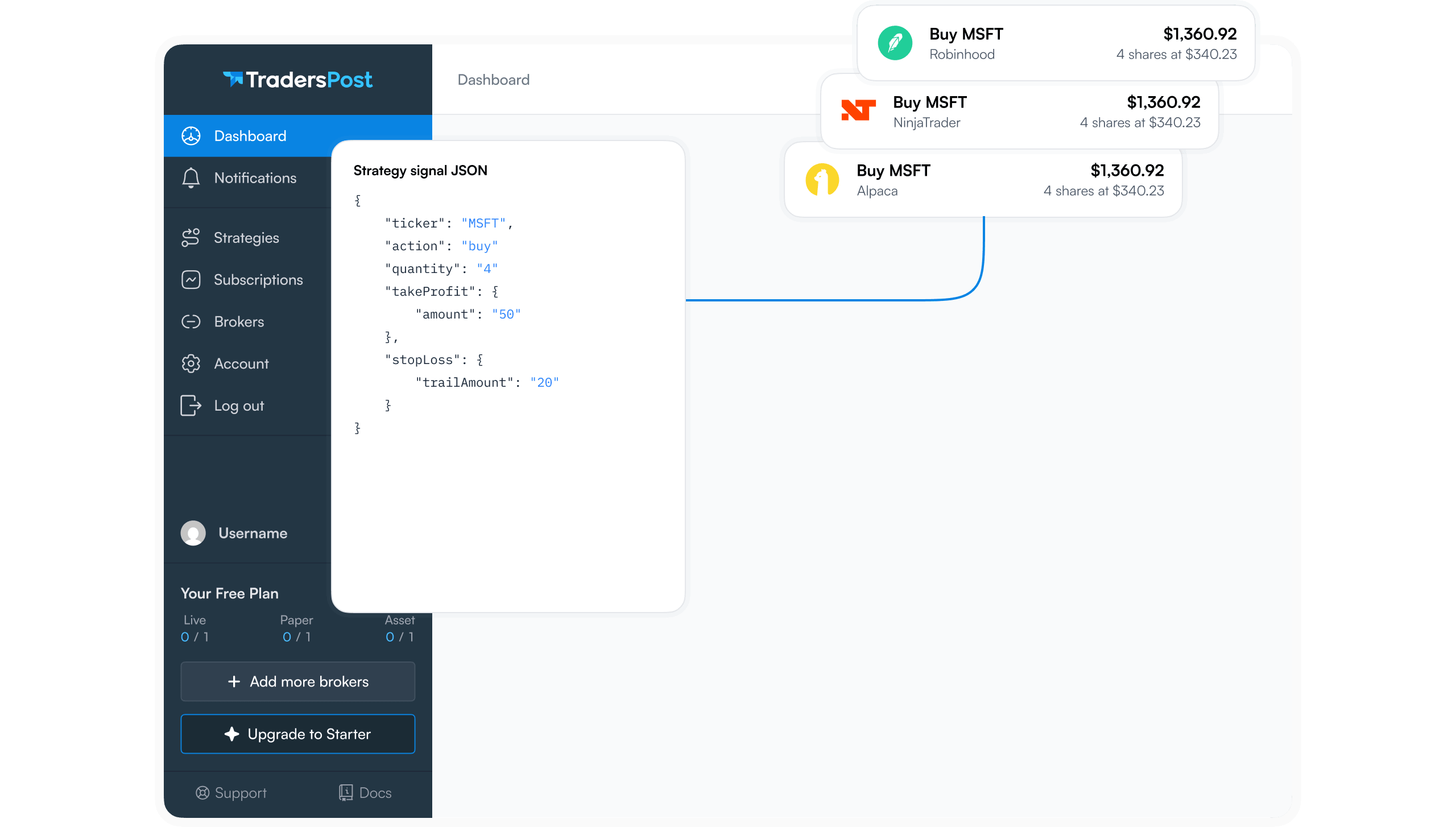
Webhooks are the mechanism that turns a TradingView alert into an automated trade. When an alert fires, TradingView sends an HTTP POST request to the URL you specify, carrying a JSON payload with details about the signal. TradersPost receives that payload and translates it into a broker order1.
Create a Webhook URL in TradersPost
Log in to your TradersPost account and navigate to the Webhooks section. Click to create a new webhook. TradersPost generates a unique URL that you will paste into TradingView's alert configuration. Each webhook URL is tied to your account and can be used across multiple alerts1.
Configure the Alert Webhook in TradingView
Open the alert that Chart Copilot created for you. In the Notifications tab, check the Webhook URL box and paste the TradersPost URL. In the alert message field, enter a JSON payload that tells TradersPost what to do when the alert fires.
A basic payload looks like this:
{ "ticker": "{{ticker}}", "action": "buy", "sentiment": "bullish" }
You can customize the payload based on your strategy needs. Common fields include:
- ticker: The symbol to trade. Use the TradingView placeholder {{ticker}} to dynamically insert the chart symbol.
- action: The trade direction. Accepted values include buy, sell, exit, and cancel.
- sentiment: Bullish or bearish, used by TradersPost to determine position direction.
- price: Optionally include {{close}} to pass the current price at alert time.
A more detailed payload for a complete entry and exit system:
{ "ticker": "{{ticker}}", "action": "buy", "sentiment": "bullish", "price": "{{close}}" }
For exit signals, configure a separate alert with the action set to exit:
{ "ticker": "{{ticker}}", "action": "exit", "sentiment": "flat" }
TradersPost supports a wide range of payload configurations. You can explore the full list of supported fields in the TradersPost webhook documentation.
Step 4: Configure Your TradersPost Strategy
With the webhook connected, the next step is to configure how TradersPost handles incoming signals. This involves three components: your strategy, your broker connection, and a subscription that links them together1.
Connect Your Broker
TradersPost supports a growing list of brokers including Alpaca, TradeStation, Tradier, Interactive Brokers, Robinhood, Tradovate, and others1. Navigate to the Brokers section in your TradersPost dashboard and follow the authentication flow for your chosen broker. The connection typically takes under two minutes and involves authorizing TradersPost to place orders on your behalf.
Create a Strategy
In TradersPost, a strategy defines the rules for how signals are processed. Create a new strategy and assign the webhook you created earlier. You can configure parameters such as:
- Position sizing (fixed dollar amount, fixed shares, or percentage of portfolio)
- Maximum position size limits
- Order type preferences (market, limit, or stop orders)
- Allowed trading direction (long only, short only, or both)
Create a Subscription
A subscription connects a strategy to a specific broker account. This is where you define the relationship between the signals coming in from TradingView and the orders going out to your broker. You can have multiple subscriptions per strategy, allowing you to run the same AI-driven signals across different brokers or account types simultaneously1.
Start with Paper Trading
Before committing real capital, enable paper trading on your subscription. TradersPost supports paper trading through compatible brokers like Alpaca, and also provides its own simulated execution mode1. Paper trading lets you verify that the full pipeline works correctly: Copilot generates analysis, alerts fire on the right conditions, webhooks deliver payloads, and TradersPost places the correct orders.
Run paper trading for at least two to four weeks before switching to live execution. This testing period helps you identify issues with alert timing, payload formatting, or position sizing before they cost real money.
Step 5: Monitor and Refine
Automation does not mean set and forget. Regular monitoring is essential for maintaining a healthy automated workflow, especially when AI-generated signals are involved.
Check Webhook Logs
TradersPost provides detailed logs for every webhook received. Review these logs to confirm that signals are arriving correctly and being processed as expected. The logs show the raw JSON payload, the parsed action, and the resulting order1. If you see signals arriving but orders not executing, the issue is usually a payload formatting error or a broker connection problem. For a deeper dive into log analysis, see what to do after your webhook logs show trade signals.
Evaluate Execution Quality
Compare the price at alert time with the actual fill price. Some slippage is normal, particularly with market orders during volatile periods. If slippage is consistently high, consider switching to limit orders or adjusting the symbols you trade to more liquid instruments.
Refine Your AI Prompts
The quality of your automated signals depends directly on the quality of your AI prompts and alert conditions. If you find that alerts are firing too frequently and generating false signals, tighten the conditions. If alerts rarely fire and you are missing moves, broaden the criteria. Iterate on your Chart Copilot prompts to focus on the most reliable technical setups for your trading style.
Advanced Workflows: Beyond Chart Copilot
The basic workflow described above connects Chart Copilot analysis to automated execution. But TradingView's AI ecosystem offers additional tools that can enhance your automation strategy.
AI News Alerts for Event-Driven Trading
TradingView's AI-powered news feature summarizes breaking financial news, earnings reports, and market events in real time3. While you cannot directly pipe AI news summaries into webhooks, you can use the news analysis to inform your alert setup. For example, if AI news flags an upcoming earnings report for a stock on your watchlist, you can ask Chart Copilot to set alerts around key technical levels ahead of the announcement. This creates an event-driven automation workflow: AI identifies the catalyst, you configure the trade parameters, and TradersPost executes when conditions are met.
AI Document Analysis for Research-Backed Trades
TradingView's AI document feature lets you upload SEC filings, earnings transcripts, and research reports for instant summarization4. Use this tool to build a fundamental thesis, then translate that thesis into technical entry and exit points using Chart Copilot. The resulting alerts, connected to TradersPost, give you a workflow that combines fundamental analysis with automated technical execution.
Multi-Signal Confirmation
Rather than relying on a single AI-generated alert, consider building confirmation workflows that require multiple conditions before a trade is executed. For example:
- Set an RSI alert on the 4-hour chart and a separate MACD alert on the daily chart
- Configure both alerts to send to the same TradersPost webhook
- Use TradersPost strategy settings to require confirmation before entering a position
This approach reduces false signals and improves the overall quality of your automated entries. The more independent signals that align, the higher the probability of a successful trade.
Watchlist Scanning with Targeted Alerts
Use Chart Copilot to scan through your watchlist symbols one at a time, asking for technical analysis on each. When Copilot identifies a strong setup, create an alert on that specific symbol. This workflow turns Copilot into a screening tool that feeds a curated set of high-conviction alerts into your TradersPost automation pipeline.
Over time, you can build a library of alert templates that you reuse across different symbols and timeframes. Standardized alert payloads make it easier to manage multiple automated strategies from a single TradersPost dashboard.
Common Pitfalls and How to Avoid Them
Automating AI-driven alerts introduces unique challenges that differ from traditional rule-based automation. Here are the most common pitfalls and their solutions.
- Over-relying on AI analysis: AI Chart Copilot provides technical observations, not trade recommendations. Always apply your own judgment before setting alerts based on Copilot output. Use AI as a research accelerator, not a decision maker.
- Skipping paper trading: The temptation to go live immediately is strong, especially when AI analysis looks convincing. Resist it. Paper trade every new signal workflow for at least two weeks to validate the full pipeline.
- Ignoring alert frequency: If your alerts fire dozens of times per day, you may be overtrading. Review your alert conditions and tighten the criteria to focus on higher-quality setups.
- Forgetting to monitor: Automated does not mean unattended. Check your TradersPost logs and broker account daily. Market conditions change, and an alert configuration that worked last month may need adjustment.
- Using incorrect payload formatting: A missing comma or mismatched field name in your webhook JSON will cause orders to fail silently. Always test your payload format with a paper trading subscription before going live.
Putting It All Together
The complete workflow for automating TradingView AI alerts with TradersPost follows a clear path. Use TradingView's charting tools and AI Chart Copilot to analyze markets and identify setups. Let Copilot create alerts with precise technical conditions. Connect those alerts to TradersPost via webhooks. Configure your strategy, broker connection, and position sizing in TradersPost. Paper trade to validate, then go live with confidence.
This approach gives you the speed advantage of AI-assisted analysis combined with the consistency of automated execution. You spend less time on manual chart scanning and order entry, and more time on strategy development and performance review.
If you are already using TradingView for charting and analysis, adding TradersPost to the workflow is a straightforward next step. The platform supports stocks, options, futures, and crypto through its broker integrations, and you can use seven days of free paper trading to test the webhook connection before a paid subscription is required for live trading5.
AI tools are evolving rapidly, and the traders who learn to integrate them into disciplined, automated workflows will have a meaningful edge. The key is to treat AI as one input in a larger system, not as an oracle, and to always validate with paper trading before risking capital.
Important Disclaimers
- AI-generated analysis is not financial advice. Chart Copilot, AI news, and AI documents are research tools, not trade signals.
- Always paper trade new automated strategies before deploying real capital.
- Monitor automated strategies regularly. Market conditions change, and no strategy works indefinitely.
- Past analysis and backtested results do not guarantee future performance.
- Automated trading carries inherent risks including system failures, connectivity issues, and unexpected market events.
References
1 TradersPost Documentation - Webhooks and Broker Integration
2 TradingView Blog: AI Chart Copilot Beta
3 TradingView Blog: AI-Powered News
4 TradingView Remix - AI Chart Analysis Chrome Extension
5 traderspost.io, TradersPost Pricing