Bid-Ask Spread Indicator for TradingView
Step-by-step tutorial for building a bid-ask spread monitoring indicator in Pine Script using the bid and ask variables on the 1T timeframe.

Marketing

Bottom Line
- Build a real-time spread monitor using Pine Script bid and ask variables available on the 1T tick timeframe
- Track absolute spread in price units and relative spread as a percentage of the mid-price
- Add visual alerts when the spread exceeds a user-defined threshold indicating reduced liquidity
- Monitor spread trends with moving averages to identify periods of tightening or widening liquidity
The bid-ask spread is one of the most direct measures of market liquidity available to traders. A tight spread means active competition among buyers and sellers. A wide spread signals uncertainty, low participation, or an event that has thinned out the order book. With Pine Script v6 you can build a real-time spread monitoring indicator that tracks this information on tick charts and alerts you when liquidity conditions change1.
This tutorial walks through building a complete bid-ask spread monitor from scratch. By the end you will have an indicator that calculates both absolute and percentage spreads, tracks spread trends with a moving average, flags wide-spread conditions with color alerts, and displays live statistics in an on-chart table.
What We Are Building
The finished indicator does four things. First, it plots the absolute spread in price units so you can see the raw cost of crossing the order book. Second, it plots the relative spread as a percentage of the mid-price so you can compare spread conditions across instruments with different price levels. Third, it overlays a moving average on the spread to reveal whether liquidity is tightening or widening over time. Fourth, it displays a summary table showing the current spread, average spread, and a liquidity status label that updates on every tick.
The indicator runs exclusively on the 1T tick timeframe because the bid and ask variables are only available at the tick level2. On any other timeframe both variables return na.
Understanding Bid-Ask Spreads
Before writing code it helps to understand what the spread tells you and why monitoring it matters for trading decisions.
Absolute spread: The raw difference between the ask price and the bid price, measured in the instrument's price units. For a stock trading at $150 with a bid of $149.98 and an ask of $150.02, the absolute spread is $0.04.
Relative spread: The absolute spread expressed as a percentage of the mid-price. This normalizes the spread so you can compare liquidity across instruments. A $0.04 spread on a $150 stock is a much tighter market than a $0.04 spread on a $4 stock.
Mid-price: The average of the bid and ask, calculated as (bid + ask) / 2. The mid-price is often considered the "fair value" because it sits exactly between where buyers and sellers are willing to transact.
Spreads widen during periods of low liquidity, around major news events, at the open and close of trading sessions, and during fast-moving markets. Monitoring spread behavior gives you an edge in timing your entries and exits to minimize transaction costs.
Step 1: Indicator Setup
Start with the indicator declaration and a timeframe guard. The bid and ask variables only return valid data on the 1T timeframe2. If someone applies this indicator to a 5-minute or daily chart, it should fail gracefully with a clear error message rather than plotting empty lines.
//@version=6
indicator("Bid-Ask Spread Monitor", overlay = false, precision = 6)

// --- Timeframe guard ---
if not timeframe.isticks
    runtime.error("This indicator requires the 1T tick timeframe. Switch to a tick chart to use it.")
The timeframe.isticks variable returns true only when the chart uses a tick resolution2. The runtime.error() call stops execution and displays the message on the chart, preventing any confusion from empty plots2. Setting precision to 6 ensures small spread values display with enough decimal places.
Step 2: Calculate Spread Values
With the timeframe validated, calculate the three core spread metrics. The absolute spread is the ask minus the bid2. The mid-price is the average of the two. The relative spread divides the absolute spread by the mid-price and multiplies by 100 to express it as a percentage.
// --- User inputs ---
int    maLengthInput     = input.int(50, "Spread MA Length", minval = 1, tooltip = "Number of ticks for the spread moving average")
float  thresholdInput    = input.float(0.05, "Wide Spread Threshold (%)", minval = 0.001, step = 0.01, tooltip = "Percentage threshold above which the spread is considered wide")
string displayModeInput  = input.string("Percentage", "Display Mode", options = ["Absolute", "Percentage"])

// --- Core calculations ---
float absSpread = ask - bid
float midPrice  = (bid + ask) / 2.0
float pctSpread = midPrice > 0 ? (absSpread / midPrice) * 100 : na
The midPrice > 0 check prevents division by zero on the first tick or if either value is na. The display mode input lets users switch between viewing raw price spread or percentage spread, depending on their analysis preference.
Step 3: Add Spread Moving Average
A single spread reading is noisy. Adding a simple moving average smooths out tick-to-tick fluctuations and reveals the underlying trend in liquidity conditions. When the spread consistently stays above its average, liquidity is deteriorating. When it drops below the average, conditions are improving.
// --- Moving averages ---
float absSpreadMA = ta.sma(absSpread, maLengthInput)
float pctSpreadMA = ta.sma(pctSpread, maLengthInput)
Both the absolute and percentage spreads get their own moving average so the smoothed line matches whichever display mode the user selects. The ta.sma() function handles the rolling window calculation automatically2.
Step 4: Threshold Alerts for Wide Spreads
The threshold input defines a percentage level above which the spread is considered wide. When the relative spread exceeds this threshold, the background color changes to provide a visual alert. This helps traders avoid entering positions during periods of poor liquidity where slippage and transaction costs are elevated.
// --- Threshold detection ---
bool isWideSpread = pctSpread > thresholdInput

// --- Alert condition ---
alertcondition(isWideSpread, title = "Wide Spread Alert", message = "Bid-ask spread exceeded threshold")
The alertcondition() function registers the wide spread event with TradingView's alert system2. Users can create an alert from this indicator in the TradingView UI and receive notifications by email, SMS, webhook, or push notification when the spread blows out.
Step 5: Plotting and Table Display
Now bring everything together with plots and a statistics table. The main plot shows either the absolute or percentage spread depending on the display mode. The moving average overlays as a dashed line. Background color highlights wide-spread periods.
// --- Plotting ---
float plotSpread = displayModeInput == "Percentage" ? pctSpread : absSpread
float plotMA     = displayModeInput == "Percentage" ? pctSpreadMA : absSpreadMA

color spreadColor = isWideSpread ? color.red : color.new(color.blue, 0)
plot(plotSpread, "Spread", spreadColor, 2)
plot(plotMA, "Spread MA", color.orange, 1, plot.style_line)
bgcolor(isWideSpread ? color.new(color.red, 90) : na, title = "Wide Spread Highlight")

// --- Statistics table ---
if barstate.islast
    var table statsTable = table.new(position.top_right, 2, 4, bgcolor = color.new(color.gray, 85), border_color = color.gray, border_width = 1)

    string statusText  = isWideSpread ? "WIDE" : "NORMAL"
    color  statusColor = isWideSpread ? color.red : color.green

    statsTable.cell(0, 0, "Bid",           text_color = chart.fg_color, text_size = size.small)
    statsTable.cell(1, 0, str.tostring(bid, format.mintick), text_color = chart.fg_color, text_size = size.small)
    statsTable.cell(0, 1, "Ask",           text_color = chart.fg_color, text_size = size.small)
    statsTable.cell(1, 1, str.tostring(ask, format.mintick), text_color = chart.fg_color, text_size = size.small)
    statsTable.cell(0, 2, "Spread %",      text_color = chart.fg_color, text_size = size.small)
    statsTable.cell(1, 2, str.tostring(pctSpread, "#.####") + "%", text_color = chart.fg_color, text_size = size.small)
    statsTable.cell(0, 3, "Status",        text_color = chart.fg_color, text_size = size.small)
    statsTable.cell(1, 3, statusText,      text_color = statusColor, text_size = size.small)
The table updates on every tick because the barstate.islast condition is true during the latest bar on tick charts2. It shows the current bid, current ask, percentage spread, and a plain-language status label that reads either NORMAL or WIDE.
Complete Code
Here is the full indicator combining all five steps into a single script ready to paste into the Pine Editor.
//@version=6
indicator("Bid-Ask Spread Monitor", overlay = false, precision = 6)

// --- Timeframe guard ---
if not timeframe.isticks
    runtime.error("This indicator requires the 1T tick timeframe. Switch to a tick chart to use it.")

// --- User inputs ---
int    maLengthInput     = input.int(50, "Spread MA Length", minval = 1, tooltip = "Number of ticks for the spread moving average")
float  thresholdInput    = input.float(0.05, "Wide Spread Threshold (%)", minval = 0.001, step = 0.01, tooltip = "Percentage threshold above which the spread is considered wide")
string displayModeInput  = input.string("Percentage", "Display Mode", options = ["Absolute", "Percentage"])

// --- Core calculations ---
float absSpread = ask - bid
float midPrice  = (bid + ask) / 2.0
float pctSpread = midPrice > 0 ? (absSpread / midPrice) * 100 : na

// --- Moving averages ---
float absSpreadMA = ta.sma(absSpread, maLengthInput)
float pctSpreadMA = ta.sma(pctSpread, maLengthInput)

// --- Threshold detection ---
bool isWideSpread = pctSpread > thresholdInput

// --- Alert condition ---
alertcondition(isWideSpread, title = "Wide Spread Alert", message = "Bid-ask spread exceeded threshold")

// --- Plotting ---
float plotSpread = displayModeInput == "Percentage" ? pctSpread : absSpread
float plotMA     = displayModeInput == "Percentage" ? pctSpreadMA : absSpreadMA

color spreadColor = isWideSpread ? color.red : color.new(color.blue, 0)
plot(plotSpread, "Spread", spreadColor, 2)
plot(plotMA, "Spread MA", color.orange, 1, plot.style_line)
bgcolor(isWideSpread ? color.new(color.red, 90) : na, title = "Wide Spread Highlight")

// --- Statistics table ---
if barstate.islast
    var table statsTable = table.new(position.top_right, 2, 4, bgcolor = color.new(color.gray, 85), border_color = color.gray, border_width = 1)

    string statusText  = isWideSpread ? "WIDE" : "NORMAL"
    color  statusColor = isWideSpread ? color.red : color.green

    statsTable.cell(0, 0, "Bid",           text_color = chart.fg_color, text_size = size.small)
    statsTable.cell(1, 0, str.tostring(bid, format.mintick), text_color = chart.fg_color, text_size = size.small)
    statsTable.cell(0, 1, "Ask",           text_color = chart.fg_color, text_size = size.small)
    statsTable.cell(1, 1, str.tostring(ask, format.mintick), text_color = chart.fg_color, text_size = size.small)
    statsTable.cell(0, 2, "Spread %",      text_color = chart.fg_color, text_size = size.small)
    statsTable.cell(1, 2, str.tostring(pctSpread, "#.####") + "%", text_color = chart.fg_color, text_size = size.small)
    statsTable.cell(0, 3, "Status",        text_color = chart.fg_color, text_size = size.small)
    statsTable.cell(1, 3, statusText,      text_color = statusColor, text_size = size.small)
Trading Applications
A spread monitor is not just a diagnostic tool. It directly informs several practical trading decisions.
Entry Timing
If you trade with market orders, the spread is your immediate cost. Entering during a wide spread means you pay more to get filled. By watching the spread monitor, you can delay entries until liquidity returns and the spread tightens to its normal range. Even a few ticks of improvement on each trade compounds over hundreds of executions.
Session Analysis
Spreads follow predictable patterns throughout the trading day. They tend to be widest at the open, narrow during the mid-session, and widen again into the close. The moving average on the spread indicator helps you identify these patterns for your specific instrument and build session-based rules into your trading plan.
Event Detection
News events, earnings releases, and economic data drops cause sudden spread expansion. The wide spread alert acts as an early warning system. If your strategy uses limit orders, a spread spike may indicate that your resting orders are at risk of adverse selection. If you use market orders, the alert tells you the cost of immediacy just increased.
Instrument Selection
When choosing between multiple instruments to trade, spread behavior is a factor in expected execution quality. Running this indicator on several symbols lets you compare their typical spreads and choose the one with the lowest friction for your strategy.
Automation with TradersPost
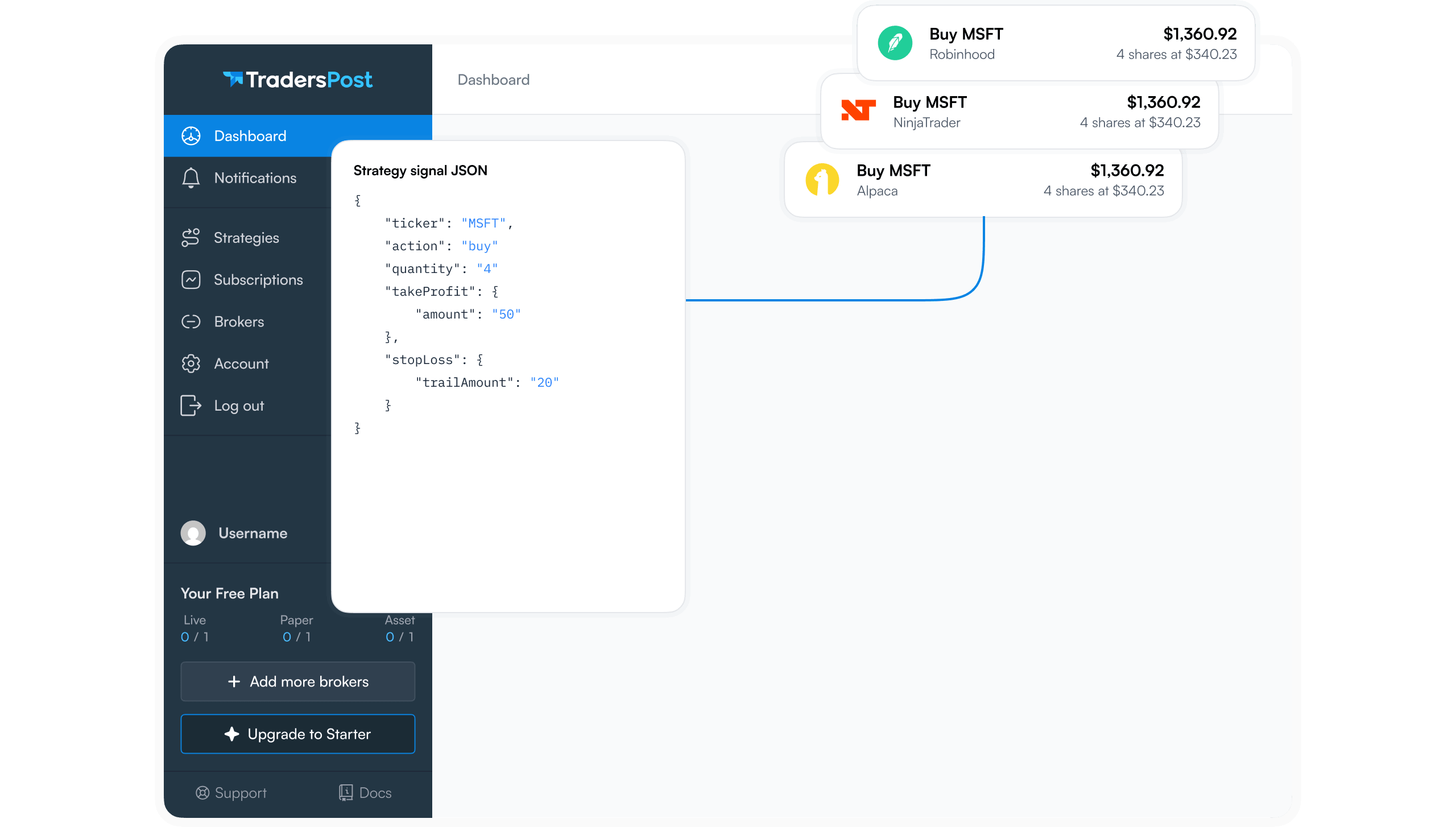
Spread conditions can be integrated into automated trading workflows. By combining the alertcondition() in this indicator with a TradersPost webhook, you can build systems that pause or adjust automated strategies when spreads exceed acceptable levels3. For example, a TradersPost subscription could monitor the wide spread alert and temporarily disable order execution until conditions normalize, protecting your automated strategy from excessive slippage during illiquid periods.
Customization Ideas
The base indicator provides a solid foundation that you can extend in several directions.
- Add a spread histogram by changing the plot style to plot.style_columns for a visual representation of spread magnitude over time
- Track the maximum spread seen during the current session using a var variable that resets on session boundaries
- Add an EMA option alongside the SMA for a more responsive moving average that reacts faster to spread changes
- Calculate the spread in ticks by dividing the absolute spread by syminfo.mintick for a unit-independent measurement2
- Add a second threshold for an extreme spread level that triggers a different alert for catastrophic liquidity events
Each of these extensions builds on the same core calculation pattern. The bid and ask variables provide the raw data, and Pine Script's built-in functions handle the smoothing, comparison, and display logic.
Key Takeaways
The bid and ask variables in Pine Script v6 give you direct access to the order book's best prices on tick charts1. Building a spread monitor around these variables turns raw market microstructure data into actionable information about liquidity conditions. The combination of absolute spread, percentage spread, a smoothing average, and threshold alerts creates a complete liquidity monitoring tool that helps you time entries, avoid slippage, and detect market events before they impact your positions.
References
1 Pine Script Release Notes
2 Pine Script v6 Language Reference
3 TradersPost - Automated Trading Platform