AI-Generated Pine Script Alerts for Webhooks
Learn to prompt AI for working Pine Script v6 alert code, spot the mistakes it commonly makes, and turn the output into a webhook-ready alert.

Marketing

Getting AI to write Pine Script alerts for a webhook starts with a precise prompt, but it cannot end with unreviewed AI output. The generated Pine Script must use the right alert function, produce valid JSON, wait for confirmed bars, and expose an event that you manually activate through TradingView’s Create Alert dialog.
This tutorial shows how to prompt for Pine Script v6 alert code, audit common mistakes, correct a moving average crossover example, and connect its JSON message to a webhook. For broader guidance on selecting and using coding assistants, see Best AI for Pine Script.
What AI Alert Code Must Cover
alertcondition() vs alert() in Pine v6
The first decision is whether the script needs alertcondition() or alert(). The alertcondition() function has an effect only in indicators, and its message must be a constant string known at compile time. The alert() function works in indicators and strategies, accepts a dynamic series string, and takes a frequency argument.1
Each alertcondition() call creates a distinct choice in the Create Alert dialog. One or more alert() calls appear under a single “Any alert() function call” choice.2 Use alertcondition() when users need separately selectable conditions. Use alert() when the message must contain calculated values or JSON assembled at runtime.
Why Alert Message Format Matters
When a webhook URL is configured, TradingView sends an HTTP POST request with the alert message in its body. Valid JSON receives an application/json content type. Any other message receives text/plain.3
Pine Script has no built-in JSON generator, so the script must construct JSON as an ordinary string.2 That means escaping the double quotes surrounding keys and string values. Single-quoted keys, trailing commas, and unquoted string values produce invalid JSON.
Where TradersPost Fits
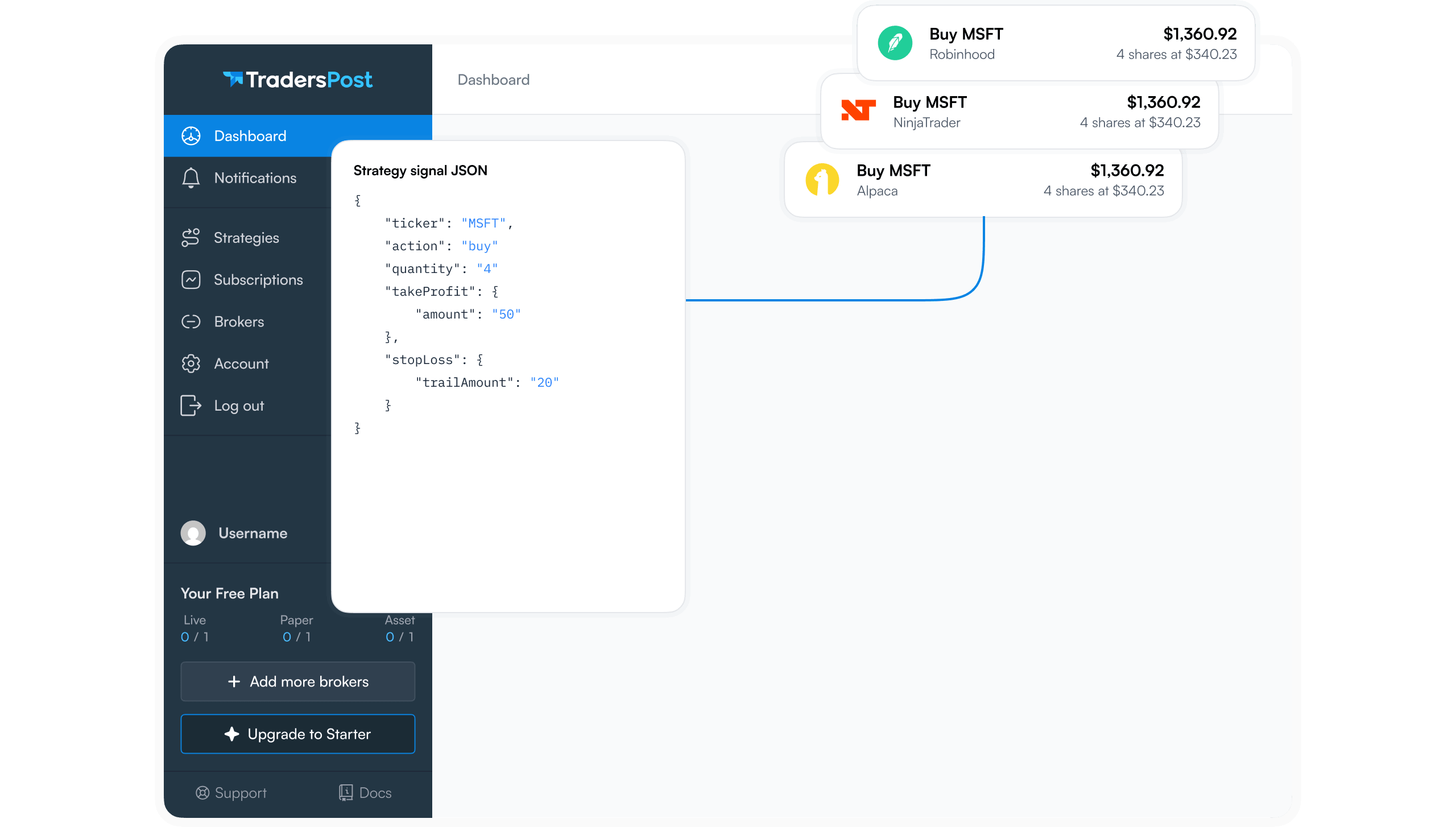
TradersPost receives a JSON message as a Signal through a webhook URL. Fields such as ticker, action, and quantity describe the requested trade. The platform processes that Signal using the configured strategy and subscription, then submits the trade to the connected broker or exchange. The same Pine alert can serve another receiver when its JSON keys and values match that receiver’s specification.
Writing a Precise Prompt for AI
Pin Version and Script Type
State Pine Script v6 and identify the output as either an indicator or a strategy. This prevents the model from mixing obsolete syntax with current behavior or placing an ineffective alertcondition() call in a strategy.
Ask for alert() with an explicit frequency. If you leave this choice to the model, it may omit the argument and inherit alert.freq_once_per_bar, which allows the first qualifying call on the realtime bar to trigger.1
Name Inputs and Conditions
List every adjustable value and its Pine input type. For example, request input.int() for moving average lengths and input.float() for a numeric threshold. Then define the signal in exact terms, such as “the fast EMA crosses above the slow EMA,” rather than asking for a generic crossover alert.
Specify the complete JSON shape too. Name each required key, whether its value is a string or number, and which Pine value supplies it. A useful prompt checklist is:
- Pine Script v6 and indicator or strategy type
- Named inputs with types and defaults
- Exact trigger series and crossing direction
- Required JSON keys and value sources
- Confirmed-bar gating and explicit frequency
Require Confirmed-Bar Logic
Ask for the trigger to include barstate.isconfirmed and for the alert call to use alert.freq_once_per_bar_close. Also require a short explanation of both choices. Making the model justify its timing logic exposes contradictions, such as claiming an alert waits for the close while leaving the default frequency in place.
Worked Example: Prompt to Fixed Code
The Initial Prompt
Use a prompt with testable requirements:
“Write a Pine Script v6 indicator named EMA Webhook Alert. Add two input.int() inputs named Fast Length and Slow Length, with defaults of 9 and 21. Trigger when the fast EMA crosses above the slow EMA. Gate the condition with barstate.isconfirmed. Use alert() with alert.freq_once_per_bar_close. Build valid JSON containing ticker, action set to buy, quantity set to 1, and the closing price. Plot both EMAs. Explain the frequency and gating choices.”
Reviewing the AI Output
First, confirm that the response is an indicator and that its chosen alert function matches the required message. Because the ticker and close must be inserted at runtime, alert() is the direct choice. An alertcondition() message cannot concatenate syminfo.ticker or str.tostring(close).
Next, inspect the resulting message rather than trusting its JSON-like appearance. The delivered body needs double quotes around ticker, action, and their string values. Finally, verify that the crossover is gated with barstate.isconfirmed and that the alert call names its frequency.
The Corrected v6 Code
//@version=6
indicator("EMA Webhook Alert", overlay = true)

int fastLength = input.int(9, "Fast Length", minval = 1)
int slowLength = input.int(21, "Slow Length", minval = 1)

float fastEma = ta.ema(close, fastLength)
float slowEma = ta.ema(close, slowLength)

bool longSignal = ta.crossover(fastEma, slowEma) and barstate.isconfirmed

if longSignal
    string message = "{\"ticker\":\"" + syminfo.ticker + "\",\"action\":\"buy\",\"quantity\":1,\"price\":" + str.tostring(close, format.mintick) + "}"
    alert(message, alert.freq_once_per_bar_close)

plot(fastEma, "Fast EMA", color = color.blue)
plot(slowEma, "Slow EMA", color = color.orange)
The correction makes three timing and formatting decisions explicit. The condition waits for bar confirmation, the alert frequency requires the closing iteration, and the message uses escaped double quotes to produce JSON. The numeric quantity and price values remain unquoted, while ticker and action are JSON strings.
Where AI Gets Alerts Wrong
Dynamic alertcondition() Messages
AI often concatenates a calculated value into alertcondition(). That fails because its message requires a constant string. Placeholders such as {{close}}, {{ticker}}, {{plot_0}}, and {{plot("Title")}} let TradingView substitute dynamic values when the alert fires.2
Fix: use placeholders in a constant message, or switch to alert() when the script must assemble fully dynamic text.
alertcondition() Inside a Strategy
An alertcondition() call can compile in a strategy, but it cannot issue an alert trigger there.2 Strategies can trigger alerts through alert() calls, order fill events, or both. For customized fill messages, use the alert_message parameter on order-generating calls and include {{strategy.order.alert_message}} in the alert message field.
Fix: replace strategy alertcondition() calls with alert(), or configure order fill alerts when execution events are what matter.
Default alert() Frequency
In an indicator, the default alert.freq_once_per_bar permits the first executed call during a realtime bar to trigger. The final bar values can differ from those present at that moment. TradingView classifies scripts using realtime intrabars to generate alerts or orders as unacceptable repainting.4
Fix: use alert.freq_once_per_bar_close for confirmed signals and gate the condition with barstate.isconfirmed.
Strategy Frequency Assumptions
Strategies recalculate at bar close by default. Unless calc_on_every_tick = true is enabled, their alert() calls behave as once per bar close regardless of the supplied frequency argument.1 Strategy alert frequency is controlled by code, so the Create Alert dialog does not offer a frequency setting for strategy alerts.5
Fix: do not request every-tick strategy alerts unless intrabar recalculation is intentional and its repainting implications have been reviewed.
Repainting Checks Before You Deploy
Confirming Bar State
barstate.isconfirmed is true on historical bars and on the final update of a realtime bar.6 Adding it to the trigger delays the signal until that bar’s values are final. This trades earlier notification for consistency between the visible closed-bar signal and the webhook event.
Why Intrabar Alerts Fail Review
Ask two questions when reviewing generated code: does it calculate consistently on historical and realtime bars, and do its alerts wait for the realtime bar to close? TradingView specifically recommends these checks when evaluating repainting behavior.4
Test Before Trusting
Pine alert code only exposes alert events. You must still create the running alert through the chart interface and confirm its appearance in the alert log. Creating an alert saves a snapshot of the script, inputs, symbol, and timeframe. Later edits do not update that running alert, so delete and recreate it after correcting the code.1
Review Checklist for This Category
Message and Frequency Checklist
- Confirm the script declares Pine Script v6.
- Confirm JSON keys and string values use double quotes.
- Confirm
alert()has an explicit frequency argument. - Use bar-close frequency and confirmation for closed-bar signals.
- Keep effective
alertcondition()calls inside indicators. - Verify the payload uses fields accepted by the destination.
Limits AI Commonly Ignores
Every alertcondition() call contributes to Pine’s limit of 64 plot counts per script.7 By contrast, all alert() calls in one script count as one alert, regardless of how many calls appear in the code. TradingView also halts further alerts if more than 15 occur within three minutes.2 Review looping or frequently repeated conditions before deployment.
Turning the Indicator Into a Webhook Alert
Write a JSON Alert Message
Format the message as valid JSON with double-quoted keys and string values. A body such as {"text":"signal received"} receives the JSON content type because it parses as JSON.3 For trade automation, replace generic fields with the exact schema expected by the receiving application.
Check Webhook Requirements
TradingView requires two-factor authentication for webhook alerts. Webhook URLs can use ports 80 or 443, requests are cancelled if the remote server takes longer than three seconds, and IPv6 is not supported. TradingView also warns against putting login credentials or passwords in the webhook body. The Webhook status column in the alert log reports delivery results.3
- Add the corrected indicator to the intended chart.
- Open Create Alert and choose the "Any alert() function call" condition.
- Enable the webhook notification and paste the destination URL.
- Create the alert, then inspect its first logged message.
- Confirm the receiver parsed the expected fields.
Paper Trade Before Going Live
Before any live account is involved, subscribe a paper account to the TradersPost strategy that owns the webhook URL. That can be the basic TradersPost paper broker or a broker's own paper environment. Compare TradingView’s exact logged message with the received Signal and the resulting paper trade. Confirm the ticker, action, quantity, timing, and order behavior before adding a subscription for a live broker account.
For a fuller walkthrough of the setup screens and delivery flow, read How to Use TradingView Webhooks, then test the AI-generated alert from signal through paper execution.
Bottom Line
- Prompt for Pine Script v6, a specific script type, exact inputs, and exact trigger logic.
- Use
alert()for runtime JSON andalertcondition()for separately selectable indicator conditions. - Require
barstate.isconfirmedandalert.freq_once_per_bar_closewhen signals must wait for candle close. - Validate the JSON, recreate alerts after code edits, and inspect webhook delivery logs.
- Paper trade the complete route before enabling live execution.
AI can accelerate alert development, but the deployable result comes from a disciplined audit. Use the review process here alongside the broader Best AI for Pine Script guide, then connect the verified webhook to a paper subscription before considering live automation.
Frequently Asked Questions
Can AI Code Work Unedited?
Sometimes, but do not assume it will. Generated code can confuse the scope of alertcondition() and alert(), produces malformed JSON, or omits an explicit frequency. Supplying current Pine Script v6 alert documentation can reduce these mistakes, but manual review remains necessary.
How Do Alert Functions Differ?
alertcondition() creates distinct indicator conditions and requires a constant message, although placeholders can insert values at delivery. alert() works in indicators and strategies, accepts a dynamic series string, and uses a frequency selected in code.
Why Does It Fire Early?
An indicator using the default alert.freq_once_per_bar can trigger on its first qualifying call before the candle closes. Use alert.freq_once_per_bar_close and gate the condition with barstate.isconfirmed when the signal must use final bar values.
Can Strategy Frequency Use Dialog Settings?
No. Strategy alert frequency is determined by the strategy code. Without calc_on_every_tick = true, the strategy normally recalculates at bar close and its alert() calls cannot execute on each intrabar update.
Why Did Webhook Delivery Fail?
Confirm that two-factor authentication is enabled, inspect the alert log’s Webhook status, and verify that the URL uses an accepted port. If the destination expects JSON, also compare the exact logged body with a JSON validator and the destination’s field specification.
References
1 TradingView Pine Script v6: Alerts
2 TradingView Pine Script v6 FAQ: Alerts
3 How to Configure Webhook Alerts
4 TradingView Pine Script v6: Repainting
5 Why Is the Once Per Bar Option Missing?
6 TradingView Pine Script v6: Bar States
7 TradingView Pine Script v6: Limitations