How to Connect Tradier to TradingView
Connect Tradier to TradingView for automated trading: setup requirements, webhooks, and TradersPost integration guide.

Marketing

-
Current Tradier and TradingView documentation shows direct account connections for stock and options trading, so the guidance now presents TradersPost as an optional bridge rather than the primary integration path.
Connecting Tradier to TradingView can significantly enhance your trading experience by enabling real-time signal execution and advanced order management. Tradier can be connected directly to TradingView for stock and options trading, while TradersPost can serve as an optional bridge for automated execution and advanced order management1. In this guide, you'll learn step-by-step how to set up this connection, leverage comprehensive strategy automation, and implement robust risk management tools. TradersPost simplifies the process and enhances your trading strategies by connecting TradingView alerts directly to Tradier for automated execution.
Preparing for Integration
Webhook Alert Setup
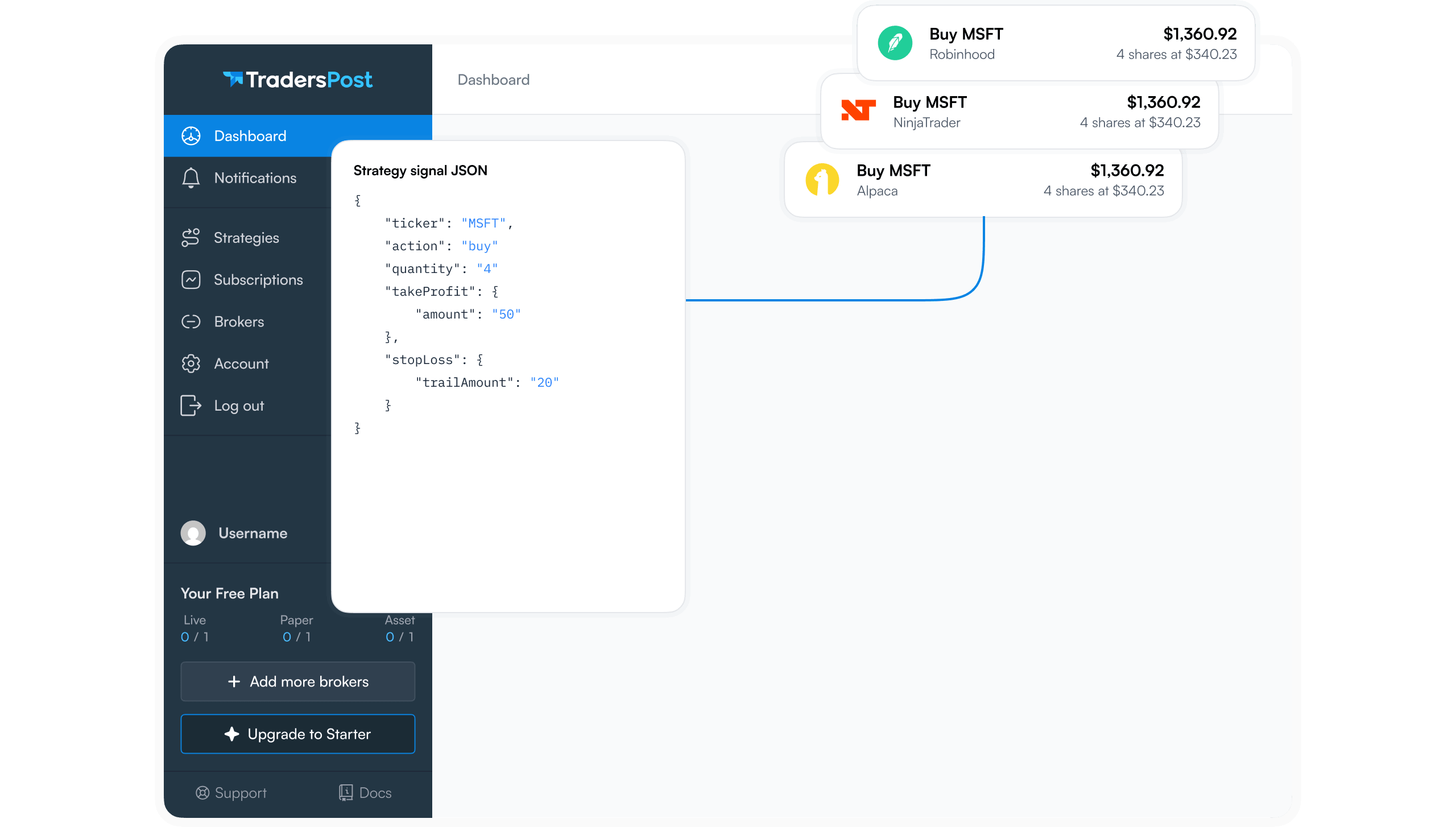
Before you begin, ensure that your TradingView alerts are properly configured to send precise messages. This requires setting up webhook alerts that can communicate with TradersPost effectively. Make sure your alert messages are detailed and structured in a JSON format compatible with TradersPost.
Strategy Testing
It's crucial to backtest and validate your trading strategies on TradingView before live implementation. Utilize TradingView’s powerful backtesting tools to ensure that your strategy performs well under various market conditions. This preparation will help in minimizing risks when you go live.
Tradier Account Requirements
To facilitate a smooth connection between TradingView and Tradier via TradersPost, ensure that your Tradier account is fully equipped:
- Trading Permissions: Your account should have all necessary authorizations for executing trades.
- Risk Management: Establish clear position sizing and risk parameters within your trading plan.
Setting Up the Connection
Linking Accounts
- Access Trading Panel: Begin by navigating to the trading panel within TradingView.
- Authentication: Complete the OAuth authentication process to securely link your accounts.
- Account Linking: Sign in to Tradier in TradingView to connect directly, or enter your Tradier account credentials within TradersPost1.
- Permission Setup: Ensure you've granted all necessary permissions for trading activities.
TradingView offers a direct connection to Tradier for stock and options trading, while TradersPost can provide additional automation features for traders using TradingView alerts1. By using TradersPost, these constraints are overcome, offering more flexibility and control over your trades.
Configuring TradersPost
- Sign Up: Register an account on TradersPost.io.
- Account Verification: Complete email verification and identity checks to activate your account.
- Initial Setup: Configure basic settings on TradersPost according to your trading preferences.
API Key Generation
Navigate to the developer section of your Tradier account dashboard:
- Access the API management area.
- Generate an API key and secret for secure transactions.
- Configure necessary permissions for trading access through these keys.
In TradersPost:
- Go to the broker management section.
- Enter the generated API details.
- Test the connection to verify successful authentication between platforms.
Setting Up Automated Alerts
Creating Alerts in TradingView
- Right-click on a chart in TradingView and select "Add Alert."
- Define specific signal trigger conditions based on your strategy.
- Enter the webhook URL provided by TradersPost into the alert settings.
- Set up the message format using JSON structure for compatibility with TradersPost.
- Decide on alert frequency parameters that match your trading style.
Advanced Position Sizing and Risk Management
TradersPost allows sophisticated position sizing strategies:
- Fixed Quantity: Specify a set number of shares per trade.
- Percentage of Portfolio: Allocate positions based on a percentage of total capital.
- Dollar Amount: Invest a fixed dollar amount in each trade.
Implementing Risk Controls
Establish comprehensive risk controls through TradersPost:
- Maximum daily loss limits
- Position concentration limits
- Drawdown protection settings
- Stop-loss automation rules
These measures help safeguard your capital while allowing for strategic growth.
Enhancing Order Management with TradersPost
TradersPost provides advanced order management capabilities:
- Order Types: Execute market, limit, stop, and bracket orders seamlessly.
- Time in Force Options: Choose from Day, GTC (Good Till Canceled), IOC (Immediate or Cancel), or FOK (Fill or Kill).
- Conditional Orders: Execute complex multi-leg order strategies effortlessly.
Testing Your Setup Before Going Live
Before live trading, it’s critical to test everything:
- Use Tradier's paper trading environment to simulate real market conditions without financial risk.
- Confirm that orders execute accurately as intended through automated signals.
- Monitor performance metrics diligently during paper testing phases.
- Prepare error handling procedures for potential issues like signal delays or webhook failures.
Common Issues and Troubleshooting
Be proactive about potential connectivity issues:
- Verify API credentials if authentication errors occur.
- Check internet connectivity for network-related problems.
- Confirm account status is active and funded before executing trades.
Address alert-specific concerns:
- Validate webhook URLs if failures occur during transmission from TradingView to TradersPost.
- Review alert frequency settings in case of delayed signals leading to missed opportunities.
Conclusion
By following these steps, you can connect Tradier directly with TradingView for stock and options trading, or use TradersPost as an optional bridge for an automated trading experience that is both efficient and reliable1. This integration bridges gaps between strategy formulation on TradingView and execution precision provided by Tradier’s brokerage services through streamlined processes facilitated by TradersPost's platform capabilities—ultimately empowering traders like you with enhanced operational control over their investments across diverse markets efficiently!