How To Export Data From Tradingview
Comprehensive analysis of Tradestation, Alpaca, Interactive Brokers features, automation capabilities, and integration options for traders.

Marketing

-
Current TradingView documentation limits chart exports to loaded CSV data and treats webhooks as alert delivery, so unsupported plan limits and TradersPost export claims have been corrected while the core export guidance remains.
If you're looking to harness the full potential of TradingView's rich data offerings, understanding how to export this data efficiently can be a game-changer for your trading strategies. In this post, you'll learn about the types of data TradingView provides, methods to export it, and how TradersPost can enhance your trading operations through seamless integration. Whether you're an individual trader or managing multiple accounts across brokers like Alpaca, TradeStation, Tradier, and Interactive Brokers, leveraging these insights can streamline your workflow.
Understanding TradingView Data Types
Before diving into exporting data from TradingView, it's crucial to understand the types of data available:
Price Data
TradingView provides comprehensive price data that includes:
- OHLCV (Open, High, Low, Close, Volume) data
- Extended hours trading data
- Historical intraday data
- End-of-day pricing
These datasets form the foundation of many technical analyses and automated trading strategies.
Indicator Data
Indicator data is essential for technical analysis:
- Built-in technical indicators
- Custom Pine Script indicators
- Oscillators and momentum studies
- Volume-based indicators
- Price-based calculations
This allows for customized strategies tailored to specific market conditions or personal preferences.
Fundamental Data
For traders interested in the broader market picture:
- Earnings information
- Financial statements
- Economic indicators
- News sentiment data
- Corporate actions
Incorporating fundamental analysis with technical insights can provide a well-rounded approach to trading.
Exporting Data from TradingView
TradingView chart-data exports are CSV downloads limited to the data currently loaded on the chart. To export more history, load it on the chart before downloading1.
Step-by-Step Export Process
- Open Your Chart: Navigate to the desired symbol on TradingView. Set your preferred timeframe, load the historical data you need, and apply any necessary indicators1.
- Access Export Menu: Use the chart menu to locate the export option1.
- Configure Export Settings: Ensure the needed data range is loaded on the chart before downloading1.
- Download Data: Click "Export chart data," select CSV format, save it to your preferred location, and verify the completeness of the download.
TradersPost supports automated execution through TradingView alerts and webhooks rather than exported chart data1.
Account Limitations and Benefits
Chart-data exports depend on the data loaded on the chart:
- Load additional history by scrolling left or dragging the x-axis before downloading1
Chart-data exports remain CSV downloads of the data currently loaded on the chart1.
TradersPost can automate trading systems through TradingView alerts and webhooks rather than chart-data exports1.
Advanced Export Techniques with Pine Script
For those seeking automation beyond basic CSV downloads, Pine Script can be used with TradingView alerts1.
Real-time Alerts via Webhooks
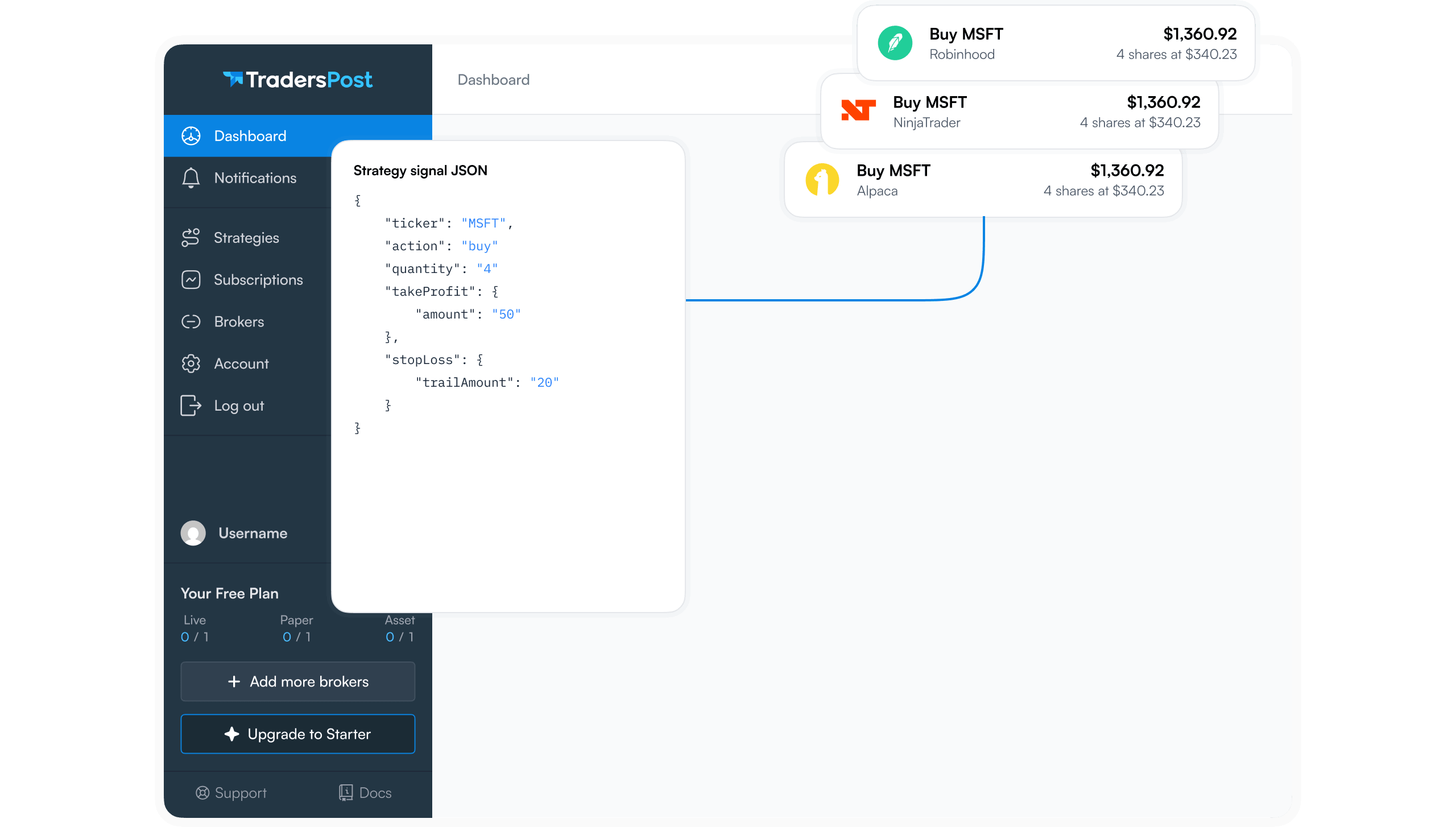
One advanced method involves using alert-based Pine Script scripts that send real-time data through TradingView's alert system. These scripts package current price and indicator data as JSON messages that external systems can receive through webhooks, making them suitable for TradersPost's automation capabilities1.
Basic Webhook Configuration
To set up webhook notifications:
- Write a Pine Script that collects the necessary real-time market data.
- Format this information into JSON.
- Configure alerts in TradingView to send this JSON payload via webhooks directly into TradersPost for immediate action.
With TradersPost's bridge between TradingView and broker accounts like Interactive Brokers or Tradier, you can automate real-time strategy execution without manual intervention.
Overcoming Common Export Challenges
Despite its robust features, exporting from TradingView may present challenges:
Issue: Export Fails or Incomplete Data
Ensure you are not exceeding account limitations if using a free plan. Check internet connectivity during large downloads which might result in incomplete files due to interruptions.
TradersPost aids in mitigating these issues by automating retries or splitting tasks among different accounts when necessary—ensuring consistent delivery of critical trade signals across linked platforms such as Alpaca or TradeStation.
Conclusion
Exporting TradingView’s chart data effectively is pivotal for crafting successful trading strategies. By mastering basic CSV downloads or employing Pine Script alerts and webhooks integrated with TradersPost’s automation solutions—traders gain significant advantages in executing timely trades across different brokers seamlessly1. As you refine your approach utilizing these tools alongside TradersPost’s powerful integrations—you’re better equipped than ever before in navigating market complexities successfully!