TradingView Webhook Alerts Documentation Explained
What TradingView's official webhook documentation actually specifies: account requirements, payload rules, delivery limits, and where the docs stop.

Marketing

-
Readers ask how TradingView webhooks handle delivery, so the guidance now covers documented delays, JSON examples, and automation limitations.
TradingView webhook alerts documentation covers the transport layer: what gets sent, to which ports, from which IP addresses, and under what account conditions. It stops there deliberately. The documentation says nothing about what your alert message must contain, what keys the JSON should have, or how the receiving service should process the request. Understanding where TradingView's spec ends and your receiving service's spec begins is what this guide explains.
If you have searched for tradingview webhook alerts documentation and found the official page confusing or incomplete, that is because the official page is intentionally narrow. TradingView sends a POST request with your message as the body, sets the content-type automatically, and expects a response within three seconds.1 Everything else, including field names, required keys, and rate limits, is defined by whatever service sits on the receiving end.
This article walks through every constraint TradingView actually documents, explains what it leaves undefined, and then covers what a receiving service like TradersPost adds on top. By the end you will know exactly what TradingView guarantees, what it does not, and how to build a valid alert message that reaches your broker. TradingView's credentials guidance states that its alerts are not designed for automated trading3.
What a TradingView Webhook Does
The Basic Mechanic
When an alert fires, TradingView sends an HTTP POST request to the URL you supplied in the alert configuration.1 The body of that POST is exactly the text you wrote in the alert message box. TradingView does not add fields, strip content, or validate the message before sending it. The transport is documented; the payload schema is not.
Where Webhooks Fit in Alerts
The webhook URL field appears whenever you create or edit any alert in TradingView. You can attach a webhook to price alerts, indicator alerts, strategy alerts, and drawing alerts. Only one URL per alert is supported. If you need to deliver a signal to multiple endpoints, that fan-out logic must live on your receiving server, not inside TradingView.
Account Requirements for Webhooks
Two-Factor Authentication Is Required
TradingView's documentation states that webhook alerts are only allowed when two-factor authentication is enabled on your account.1 This is a hard requirement. Without 2FA active, the webhook field does not function, regardless of your plan tier.
Which Plans Include Webhooks
Webhook notifications appear as a listed feature on the Essential, Plus, Premium, and Ultimate plans.2 The Basic (free) plan does not include webhook support. Plan tier also determines how many active alerts you can maintain concurrently: Essential supports 20 price alerts, Plus 100, Premium 400, and Ultimate 1,000.2
URL and Network Constraints
Allowed Ports
TradingView accepts only port 80 and port 443 for webhook URLs.1 Requests to any other port are rejected before they leave TradingView's infrastructure. IPv6 addresses are not currently supported; your endpoint must be reachable over IPv4.1
TradingView's Sending IP Addresses
TradingView publishes four specific IP addresses it uses when sending POST requests: 52.89.214.238, 34.212.75.30, 54.218.53.128, and 52.32.178.7.1 If your receiving server sits behind a firewall, these addresses need to be added to your allowlist. TradingView's documentation also explicitly warns against including sensitive information such as login credentials or passwords in the webhook body, noting that transmitting sensitive data through webhooks can expose it to unauthorized parties.1
Three-Second Response Window
If your server takes longer than three seconds to respond, TradingView cancels the request.1 TradingView does not guarantee delivery; webhooks may occasionally fail to reach the specified URL.1 You can monitor delivery status by checking the Webhook status column in the TradingView alert log.1 Whether your server processed the request before the cancellation is not something TradingView tracks, so checking your own server logs independently is always the safer path.
Content-Type and Payload Format
How TradingView Sets Content-Type
TradingView inspects your alert message before sending. If the message is valid JSON, the request carries an application/json content-type header. If the message is plain text, TradingView sends text/plain.1 You do not set the content-type yourself. It is determined automatically based on whether your message parses as valid JSON.
Many apps and services expect webhook data in JSON rather than plain text, so TradingView's documentation recommends checking the documentation of the service you are integrating with before formatting your alert.1 A common example is Slack, which expects a JSON object with a text key. The same principle applies to any trading automation platform: format the message the way the receiving service expects, and TradingView will set the correct content-type automatically. TradingView's official JSON example is {"text": "BTCUSD Greater Than 9000"}4.
What TradingView Does Not Specify
TradingView's documentation defines no required keys, no field names, and no schema for the message body. The body is whatever text you put in the alert message box, serialized as-is. Any field requirements, naming conventions, or validation rules come entirely from the receiving service, not from TradingView. This is the most important boundary to understand before configuring any automation workflow.
Where TradersPost Documentation Takes Over
Required Fields for TradersPost Webhooks
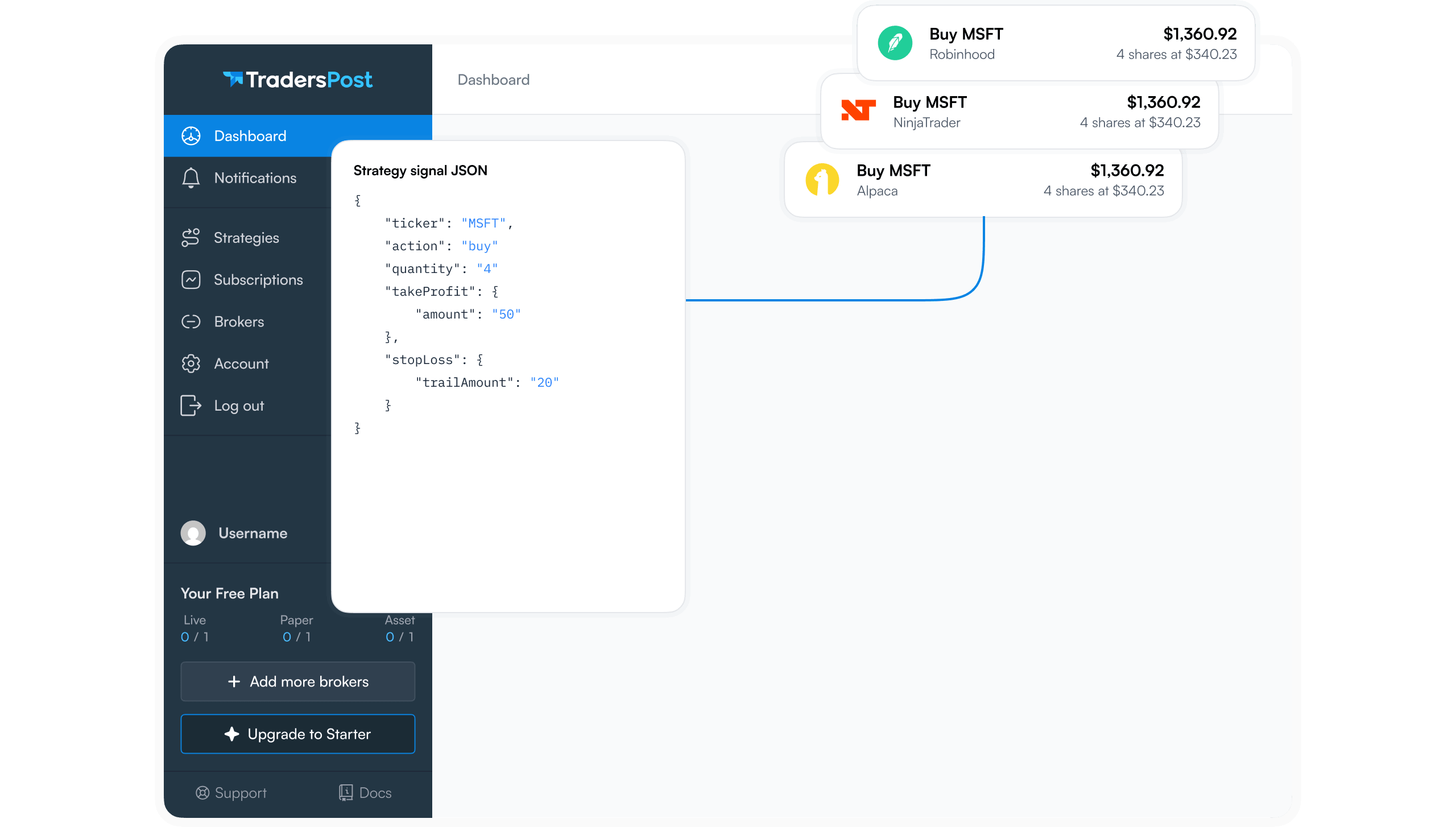
TradingView's own documentation says nothing about which fields belong in a webhook payload. The JSON schema is defined entirely by the receiving service. TradersPost requires at minimum a ticker field (the symbol, such as AAPL or BTCUSD) and an action field in the JSON payload. Optional fields such as price, quantity, orderType, sentiment, stopLoss, and takeProfit let you control execution behavior beyond the minimum. Everything beyond ticker and action is optional and controls how the order is routed and sized.
Rate Limits on the Receiving End
TradersPost enforces a limit of 60 webhook requests per minute and 500 per hour per webhook URL. Requests exceeding the limit receive an HTTP 429 response with a JSON body containing messageCode: too-many-requests. TradersPost is not designed for high-frequency trading; the minimum supported chart timeframe is the 1-minute chart. Running a strategy on a sub-minute timeframe or repeatedly breaching rate limits can result in temporary suspension or a permanent ban.
If you are ready to connect TradingView alerts to a broker, TradersPost handles the routing from your webhook URL to your broker account, with a Signals page that shows every request received and every trade created from it.
Delivery Is Not Guaranteed on Either Side
TradingView documents that webhooks may occasionally fail to reach the specified URL.1 TradersPost's known limitations documentation notes that alert webhooks from TradingView can be delayed from roughly 2-3 seconds to more than 60 seconds, with 25-45 seconds considered normal, or may not be sent at all5. Both platforms are honest about this. You are responsible for monitoring your automated strategy and taking manual action when necessary. No automation layer removes that obligation.
Building a Valid Alert Message
Using TradingView Placeholders
TradingView supports dynamic placeholders in the alert message body. The most useful ones for automation are {{ticker}}, {{close}}, and {{timenow}}. Passing {{close}} as the price field value tells the receiving service the market price at the moment the alert fired, which enables slippage calculation. Passing {{timenow}} as the time field enables latency measurement between signal generation and trade execution. For strategy alerts, TradingView also exposes {{strategy.order.action}} and {{strategy.market_position}}, which you can map directly to the action and sentiment fields.
Minimal vs. Full Payloads
A two-field payload is enough to trigger an order on a correctly configured strategy subscription:
{
"ticker": "AAPL",
"action": "buy"
}
Adding orderType, quantity, limitPrice, stopLoss, or takeProfit gives the receiving service explicit instructions and reduces reliance on defaults configured at the strategy subscription level. For TradingView strategy alerts, including sentiment (bullish, bearish, or flat) communicates the intended position state after execution, which the receiving service uses to decide whether to open, flip, or close a position.
- Minimal payload:
tickerandaction - Recommended additions:
price(for slippage tracking) andtime(for latency tracking) - Execution control:
orderType,quantity,stopLoss,takeProfit - Strategy alerts only:
sentimentto convey intended position state
Troubleshooting Webhook Delivery
Start with TradingView's Alert Log
The TradingView alert log is the authoritative record of which alerts actually fired. The Strategy Tester List of Trades shows backtesting results only; it has no record of which alerts were triggered in live trading. Each fired alert appears in the alert log with a timestamp, the exact message body that was sent, and a Webhook status column showing delivery success or failure.1 If an alert does not appear in the alert log at all, the issue is upstream of the webhook, most likely in your Pine Script logic or alert configuration.
Common Failure Points
- A port other than 80 or 443 in your URL causes the request to be rejected before it leaves TradingView.1
- A server response slower than three seconds causes TradingView to cancel the request; your server may have processed it, but TradingView marks it as failed.1
- Invalid JSON in your alert message will not prevent delivery but will change the content-type to
text/plain, which may cause the receiving service to reject or misparse the payload.1 - Missing 2FA on your TradingView account disables the webhook field entirely, regardless of your plan.1
Checking Signals on the Receiving End
Navigate to your strategy's Signals page in TradersPost to see every request received, the time it arrived, and any trades created from it. A signal visible in the Signals page but with no resulting trade indicates a configuration issue at the strategy subscription level, not a delivery failure. A 429 response means your webhook URL has exceeded the 60-requests-per-minute or 500-requests-per-hour limit. TradersPost logs every inbound webhook request under the Signals page, including the raw payload, receipt timestamp, and the trade outcome, giving you a complete audit trail independent of TradingView's alert log.
Bottom Line
Key Takeaways
- TradingView handles the transport: a POST to your URL with your alert message as the body, content-type set automatically based on whether the body is valid JSON.1
- Two-factor authentication must be enabled on your TradingView account, and a paid plan (Essential or higher) is required before the webhook field is available.12
- TradingView does not guarantee delivery, gives your server three seconds to respond, and restricts outbound connections to ports 80 and 443.1
- The JSON schema, required fields, and rate limits are defined by the receiving service. For TradersPost that means
tickerandactionat minimum, with a ceiling of 60 requests per minute. - Always verify delivery using TradingView's Webhook status column in the alert log and the Signals page on your receiving platform.
Frequently Asked Questions
Do I need a paid TradingView plan to use webhook alerts?
Yes. Webhook notifications are not available on TradingView's free Basic plan.2 The Essential plan is the lowest tier that includes webhook support. Higher tiers offer more concurrent active alerts: up to 1,000 on Ultimate.2
What happens if my server takes more than three seconds to respond?
TradingView cancels the request after three seconds, and the alert log will show a delivery failure.1 Whether your server actually processed the request before the cancellation is not tracked by TradingView, so you should check your own server logs independently to confirm receipt.
Why does TradingView send text/plain instead of application/json?
TradingView sets the content-type based on whether the alert message is valid JSON.1 Plain text or malformed JSON causes it to default to text/plain. Check your alert message for syntax errors such as missing quotes, trailing commas, or unmatched braces.
What JSON fields does TradingView require in the webhook body?
TradingView requires nothing. It sends whatever text you put in the alert message box without validating the contents.1 Field requirements come entirely from the service receiving the webhook. Each service publishes its own schema independently of TradingView.
How do I know if my webhook was actually delivered?
In TradingView, open the Alerts panel and check the Webhook status column in the alert log for each fired alert.1 On the receiving service, check its own request log. A request visible in the receiving service's log confirms TradingView delivered it even if TradingView's own status shows a timeout, because TradingView may cancel a request that your server already received and processed.
References
1 TradingView - How to configure webhook alerts
2 TradingView - Pricing
3 tradingview.com, Using credentials for webhooks
4 tradingview.com, How to configure webhook alerts
5 docs.traderspost.io, TradingView