LuxAlgo Quant: What Every Plan Includes
A feature-by-feature look at LuxAlgo Quant: credits per plan, how it builds and backtests Pine Script, and why code needs retesting in TradingView.

Marketing

LuxAlgo Quant is an AI coding agent inside LuxAlgo’s Vela charting platform. It turns plain-language instructions or chart screenshots into inspectable Pine Script, runs strategies against chart history, and is included on every plan. For a comparison with other assistants, see our guide to the best AI for Pine Script.
The main limitation is runtime portability. Quant executes code through LuxAlgo’s PineTS runtime rather than TradingView, and PineTS still lists full Pine Script v6 compatibility as a roadmap target. Any script intended for TradingView alerts should therefore be recompiled, backtested, and paper traded there before it controls orders.
What Is LuxAlgo Quant
Quant's Role Inside Vela
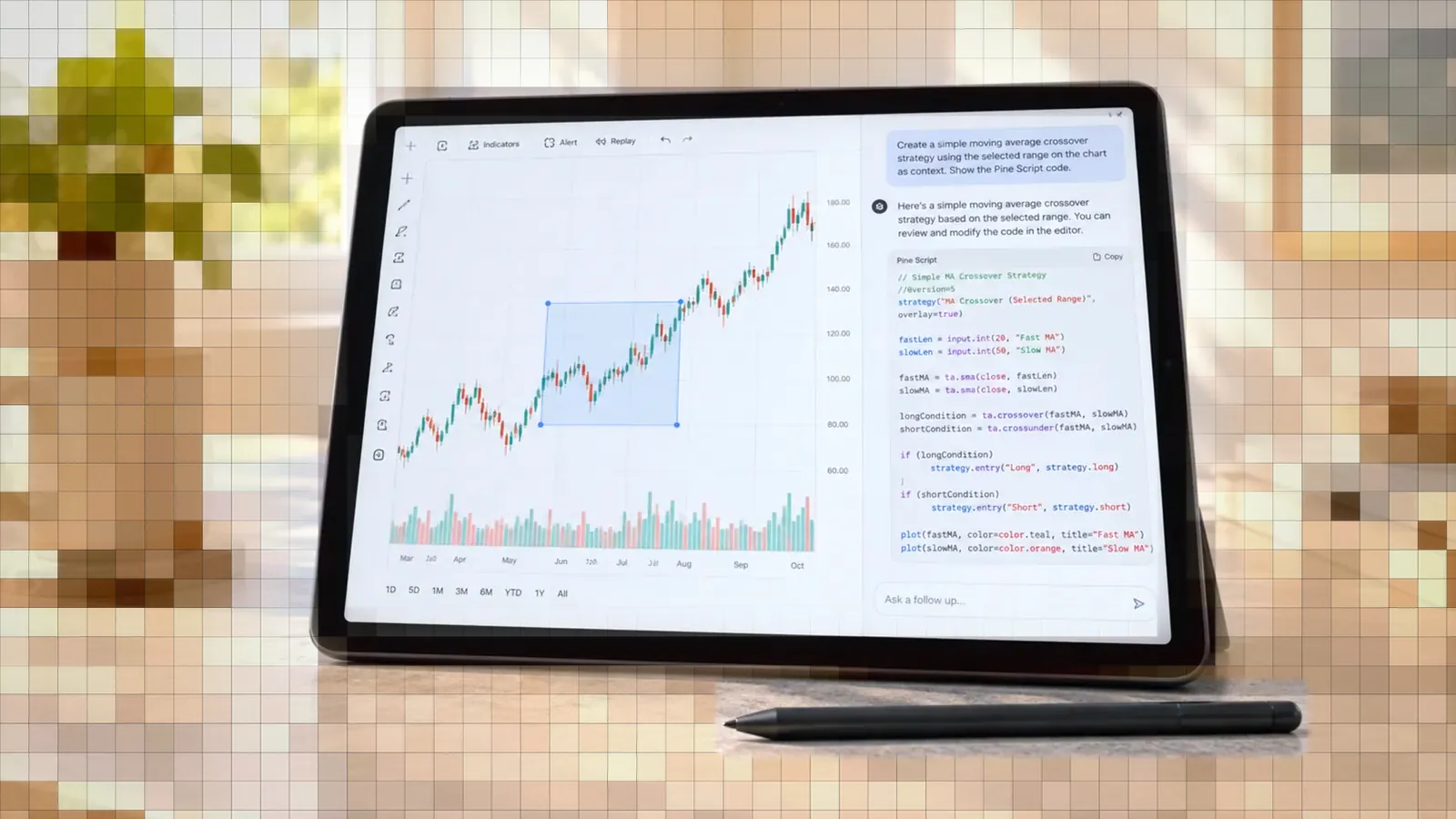
Quant is LuxAlgo’s coding agent inside Vela, its browser-based charting platform. It reads the active chart, writes or repairs indicator and strategy code, and runs scripts after approval. Requests can be written in ordinary language or supplied through a screenshot, so using the basic workflow does not require coding experience.1
What Quant Can Build
Quant generates real Pine Script that opens in Vela’s Pine editor for inspection and manual editing. One conversation can create, change, or remove multiple indicators and strategies. It can also add existing scripts from the LuxAlgo Library to the workspace, although users should name the target script clearly when a chat contains several scripts.1
Why Vela Includes Quant
LuxAlgo launched Vela on August 31, 2026 after building its products on third-party charting platforms for six years. Quant sits next to the chart, Vela is free to start, and more than 800 LuxAlgo Library indicators launched inside the platform.2
LuxAlgo Quant Plans and Pricing
Monthly Credits by Plan
Every plan includes Quant credits. The balance is shared with the Strategy Screener and resets on the first day of each month. Long conversations cost more because the complete conversation becomes context for each new request, so LuxAlgo recommends opening a new chat at around 50 messages.1 Unused monthly credits do not carry over.3
- Free: 500 monthly credits
- Essential: 2,000 monthly credits
- Premium: 5,000 monthly credits
- Ultimate: 25,000 monthly credits
- AI Ultra: 100,000 monthly credits
What Higher Tiers Unlock
Free and Essential can generate scripts, but Quant code repair is limited to Premium, Ultimate, and AI Ultra. Webhook automation for strategy alerts also begins at Premium. This distinction matters for long projects because syntax or runtime repair loops may otherwise require manual edits or additional prompts.3
What Paid Plans Cost
Standard monthly prices are $24.99 for Essential, $39.99 for Premium, $59.99 for Ultimate, and $119.99 for AI Ultra. A promotion visible on October 8, 2026 reduced first-year annual pricing, but renewals bill at the then-current standard rate. The 30-day money-back guarantee covers only the first payment; renewal charges are not eligible.4
How to Use Quant
Describe the Script Clearly
Quant accepts typed instructions, pasted or uploaded screenshots, and selected chart regions. Specific rules produce a more useful first draft. For example, “enter long when the 20 EMA crosses above the 50 EMA and exit on the opposite cross” defines executable conditions, while “buy on momentum” leaves key decisions unresolved. Quant can also change the symbol, timeframe, chart type, visible range, or chart layout.1
Pick Model and Reasoning
The model picker includes reasoning-effort choices, a Fast setting, and an option to pin frequently used models. LuxAlgo does not identify the underlying models in its documentation and says the available choices can change. Check the selected model and reasoning level before sending a complex build, especially after using Fast for a small edit.
Use Supporting Inputs Carefully
Files and chart screenshots are attached from the + menu beside the prompt, and the microphone starts voice dictation. There is no web search setting: when a request depends on outside facts that change, Quant searches the web on its own and shows its sources as links. LuxAlgo advises checking those sources and reviewing dictated text before sending it.1 A practical workflow is:
- Set the intended symbol and timeframe.
- State entry, exit, sizing, and risk rules.
- Attach a screenshot only when visual context matters.
- Review the generated Pine Script.
- Run and inspect the script before requesting refinements.
In-Chat Backtesting Explained
Read the Backtest Summary
Quant’s Backtest Summary displays net profit, trade count, win rate, maximum drawdown, and profit factor. A backtest requires a Pine script declared with strategy() rather than indicator(), allowing simulated entries and exits.5 LuxAlgo says Quant backtests across up to 50,000 bars of history.2 Its pricing page lists 50,000 historical bars only on AI Ultra, with fewer on lower plans, so check your plan before relying on a long test.4
Convert Indicators Into Strategies
When the editor contains an indicator, the Backtest button asks Quant to rewrite it with trade entries and exits while retaining the original concept. Asking “convert this into a strategy” in chat provides more control over how signals become trades. Results belong only to the tested symbol and timeframe, so they must be rerun after changing either one.5
What Backtests Cannot Prove
Quant’s feature page shows a sample performance report as part of its product walkthrough. Treat it as a picture of the interface, not as evidence that a generated strategy will produce similar results. LuxAlgo’s own disclaimer says simulated results do not represent actual trading and may have under- or over-compensated for market factors such as lack of liquidity.6
The Vela and PineTS Runtime
Where Quant Code Executes
Quant-generated Pine Script runs on LuxAlgo through PineTS, an open-source runtime separate from TradingView.7 Users can inspect the code and copy it to run elsewhere, including in TradingView’s Pine Editor.3
Why v6 Needs Retesting
The PineTS repository describes native Pine Script v6 support as experimental and lists full v6 compatibility as a future roadmap goal.8 That does not mean every Quant script will fail in TradingView. It means successful execution in Vela alone does not establish runtime parity.
Two developer reports on GitHub illustrate the risk. In one, blairwheadon reported that on PineTS 0.11.0, barstate.islastconfirmedhistory never became true when the last bar was still forming and had no close time, as on live Vela charts, so a script that draws on the last confirmed bar drew nothing and showed no error.9 In another, willzhqiang reported that higher-timeframe request.security calls received too little history, so ATR, RMA, and EMA values differed from TradingView. In an SPY example the daily ATR was off by about 1.7 percent, and a LuxAlgo team member replied that it was reproduced on their end.10
Execution Happens Outside Quant
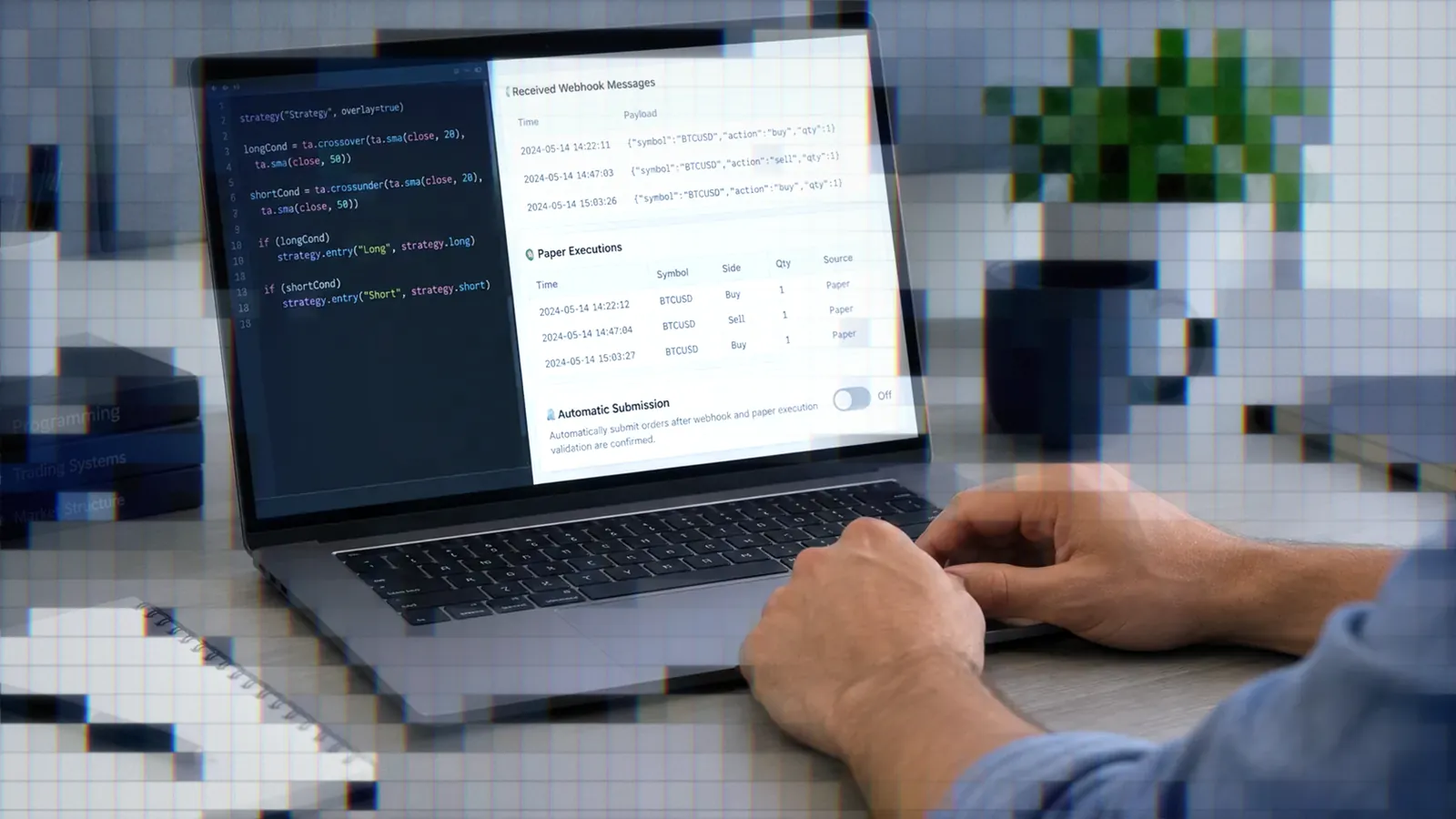
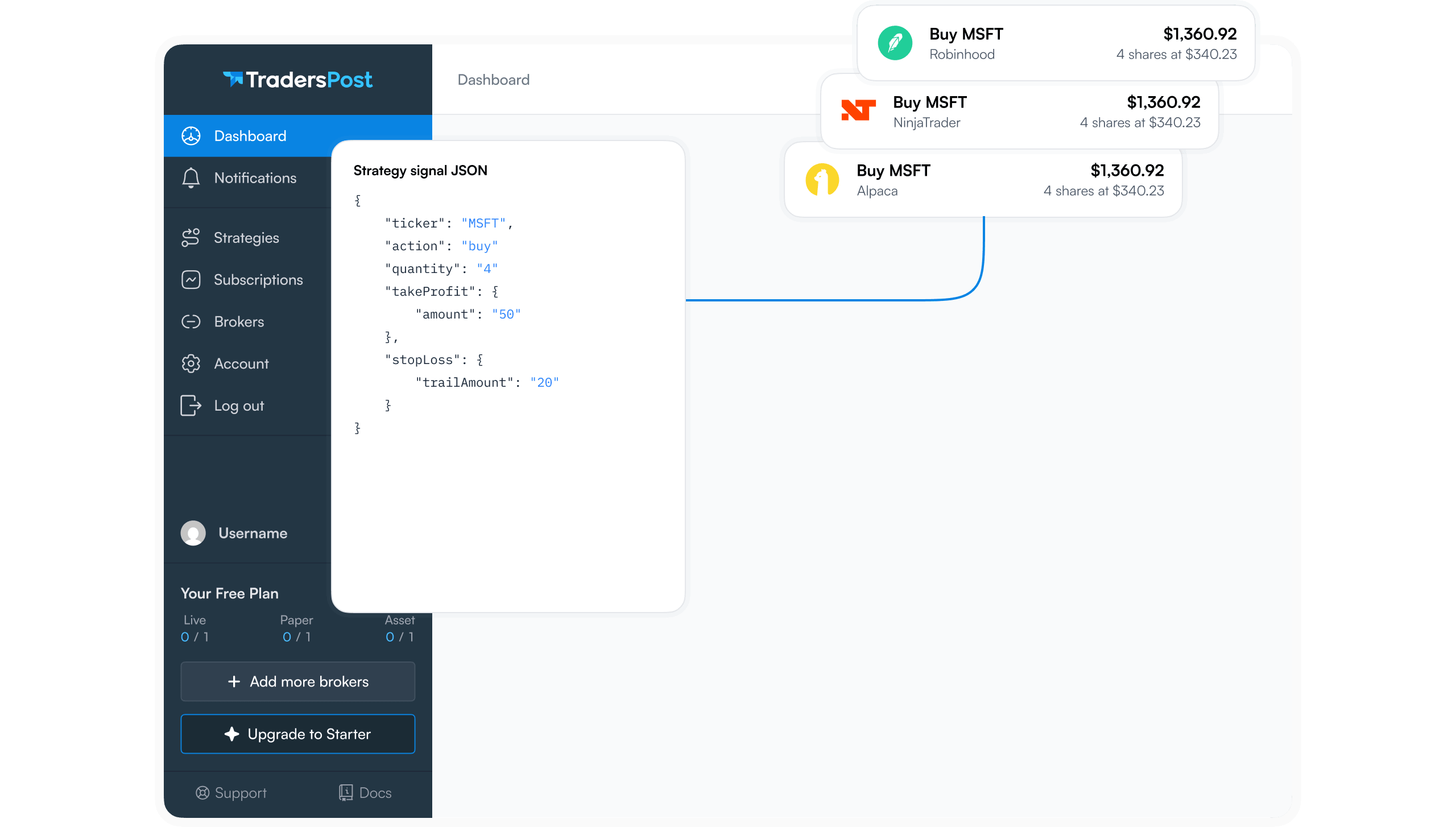
LuxAlgo states that it does not execute trades or provide personalized investment advice. Its webhook automation begins on Premium, while actual broker routing remains a separate part of the workflow.4 After recompiling a script in TradingView, TradersPost can receive its JSON webhook signal, process it using the configured strategy and subscription settings, and submit the resulting trade to a connected broker or exchange.
What Traders Report Online
Builders Publish Quant Scripts
TradingView publisher Peacethruprocess wrote that they worked with Quant to design the specification for a premarket indicator, published it as an open-source script in May 2026, and used Quant again for later updates, including a new setup signal.11 Other publishers credit Quant on open-source scripts: daytrader53 for an Indices Delta Dashboard,12 Metanaute for a multi-timeframe EMA cloud indicator,13 and US30Sniper for a liquidity sweep indicator.14 Each is one person’s experience. Together they show a spec, iterate, inspect, and publish workflow, not a success rate.
Developers Flag Parity Gaps
The bar-state and higher-timeframe reports above came from developers using PineTS directly, not confirmed Quant chat users. They remain relevant because PineTS is the documented runtime for Quant code in Vela, but they should not be presented as proof that every generated script has the same problems.
Verify Generated Claims
The Peacethruprocess publication also included a Quant-written description containing specific performance language that was not independently verified. Treat generated descriptions, trade statistics, and backtest summaries as drafts requiring review. Inspect the code and reproduce any result instead of repeating generated claims.
Quant vs General AI Assistants
Specialized vs General Purpose
LuxAlgo describes Quant’s output as logic grounded in years of published trading concepts, and its feature page lists examples such as order blocks, fair value gaps, liquidity sweeps, market structure, and volume profile.6 Its interface exposes reasoning-effort settings but not named underlying models. General assistants expose different model choices and can help with a broader range of programming tasks.
Chart-Native vs Copy-Paste
Quant’s advantage is workflow integration: it sees the active Vela chart, accepts screenshots, edits multiple scripts, and runs a backtest without leaving the conversation. General assistants usually require users to paste code and errors into a chat, then compile and test separately in TradingView, as our guide to using AI to write TradingView Pine Script describes. See our related guides to ChatGPT, Claude, Claude Code, and OpenAI Codex.
Repair and Iteration Differences
Quant offers integrated code repair only on Premium and above, although every plan can generate an initial draft. Its distinctive feature is not simply Pine generation. It is the combined screenshot, chart context, script editor, and backtest workflow. General assistants remain useful when portability, named model selection, or work outside Vela matters more.
Moving a Quant Script Live
Recompile in TradingView
Copy the generated Pine Script into TradingView’s Pine Editor and resolve every compilation warning or error there. Then compare plots, signal locations, order counts, and strategy settings against Vela. Rerun the backtest on the exact symbol, data feed, session, and timeframe intended for automation.
Alert and Paper Trade
LuxAlgo’s own Strategy Alerts fire only on confirmed events, meaning after the signal’s candle closes.3 Apply the same care in TradingView. When configuring the TradingView alert, verify that the message is valid JSON and that its ticker, action, quantity, and optional order instructions match the intended behavior. TradersPost can receive that webhook and route the processed signal to a connected account. Use test or paper execution first, then monitor alert timing and broker responses before considering live capital.
Bottom Line
- LuxAlgo Quant is available on every plan, with 500 to 100,000 monthly credits.
- Premium and higher plans add Quant code repair and webhook automation.
- Quant combines chart context, screenshot input, Pine generation, and in-chat backtesting.
- Its code runs through PineTS, so Vela results do not guarantee TradingView parity.
- Recompile and retest in TradingView, then connect the alert to a broker through a webhook and paper trade the complete chain first.
Quant is a practical option for traders who value a chart-native coding workflow. It should still be treated as a development assistant rather than a source of verified performance. For more options, compare it with the tools covered in our best AI for Pine Script guide.
Frequently Asked Questions
Is LuxAlgo Quant free?
Yes. The Free plan includes 500 monthly credits. Paid plans increase the allowance to as much as 100,000 credits on AI Ultra, while Quant code repair starts with Premium.
Does Quant code run on TradingView?
Quant initially executes Pine Script through PineTS inside LuxAlgo, not inside TradingView. You can copy the code into TradingView, but it should be recompiled and retested there because full Pine Script v6 compatibility remains a PineTS roadmap target.
How does Quant differ?
Quant operates beside a Vela chart and combines chart context, screenshots, code generation, editing, and backtesting. ChatGPT or Claude usually requires a copy-paste workflow followed by separate testing in TradingView.
Can Quant fix Pine errors?
Quant code repair, the Fix with Quant action for syntax and runtime errors, is available on Premium, Ultimate, and AI Ultra. Free and Essential users can generate code but do not receive that repair feature.
What does Quant cost?
Paid monthly plans range from $24.99 for Essential to $119.99 for AI Ultra. Promotional annual prices can reduce the first payment, but renewals return to the then-current standard rate. The 30-day guarantee applies only to the first eligible subscription payment.
References
1 LuxAlgo Docs: What Is Quant?
2 Introducing Vela by LuxAlgo
3 LuxAlgo Platform FAQ
4 LuxAlgo Pricing
5 LuxAlgo Docs: Making Strategies
6 LuxAlgo Quant Features
7 LuxAlgo Docs: What Is LuxAlgo?
8 LuxAlgo PineTS Repository
9 PineTS Issue 391: Last Confirmed History
10 PineTS Issue 356: Higher-Timeframe History
11 Peacethruprocess: MFB Premarket 5 min Sweep/FVG-123
12 daytrader53: Indices Delta Dashboard
13 Metanaute: 7 Multi-Timeframe EMA Clouds
14 US30Sniper: Liquidity Delta Profiler