Voice Assistant Trading: What Actually Works
Alexa, Siri, ChatGPT and Claude can help set up a trade condition, but none of them watch prices tick by tick. Here's how voice assistant trading actually reaches a broker.

Marketing

Voice assistant trading works when the assistant sets up, launches or checks an action while a separate, event-driven system watches the market. Alexa, Siri, ChatGPT and Claude are not market-data engines that follow every price update.
For a fast condition, use a TradingView alert that sends a webhook, or place a waiting order with your broker. Use assistant schedules for summaries and periodic checks, not for breakouts, stops or anything where seconds matter.
This article reflects product documentation checked on October 8, 2026. AI assistant products changed quickly during 2026, so check current scheduling, tool and approval settings before connecting anything to your own trading account.
Voice Assistant Trading: The Short Answer
No Assistant Watches Prices Live
Voice and chat assistants are conversational interfaces. They can interpret a request, call a connected tool or run a saved task, but that does not make them a market-data process running next to a live chart.
ChatGPT tasks inside a chat can use minute-based intervals, and event triggers cover supported Gmail, Slack and GitHub activity; OpenAI documents no price or generic webhook trigger.1 Claude scheduled tasks run hourly, daily, weekly, on weekdays or manually, so hourly is the fastest recurring option.2
The Pattern That Actually Works
The assistant sets up or checks a condition. A separate system watches for the event and acts when it happens. That watcher might be a TradingView alert, a standing broker order or a script you run yourself.
Event-driven paths react when the event occurs. Scheduled tasks only see a condition if it is still true at their next run. If price crosses a level and reverses between checks, the assistant may never see it.
- Assistant: interpret the request, prepare a condition or report results.
- TradingView: evaluate chart and strategy logic.
- Broker order: wait for a simple price trigger.
- Webhook receiver: turn a triggered signal into an order.
Three Ways a Condition Gets Watched
TradingView Alert With a Webhook
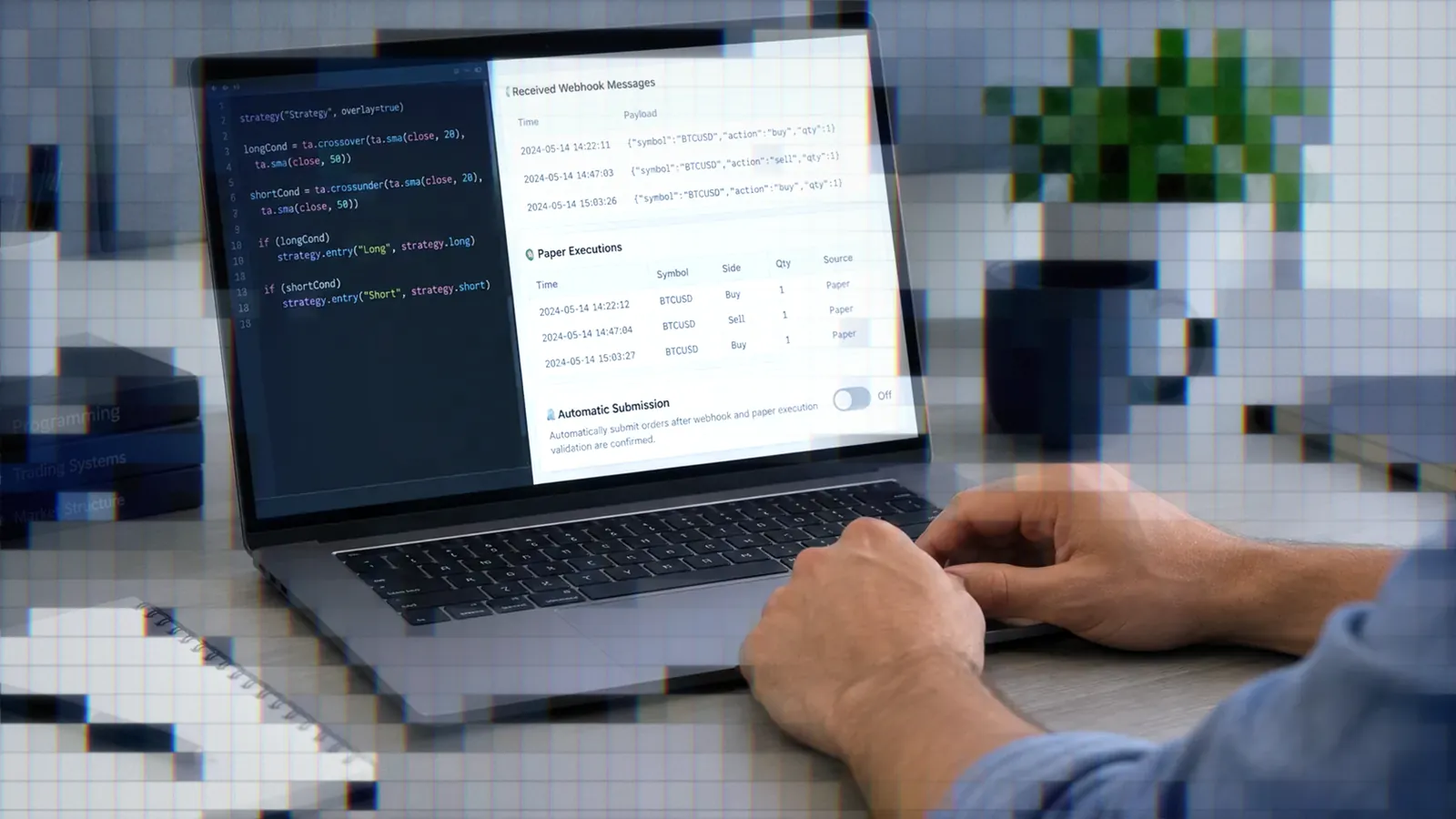
When a TradingView alert with a webhook fires, TradingView sends an HTTP POST request with the alert message to the URL you set, and a message that is valid JSON goes out as application/json. Webhook alerts are only allowed with two-factor authentication turned on, URLs with a port must use 80 or 443, and a request is cancelled if the receiving server takes longer than three seconds.3
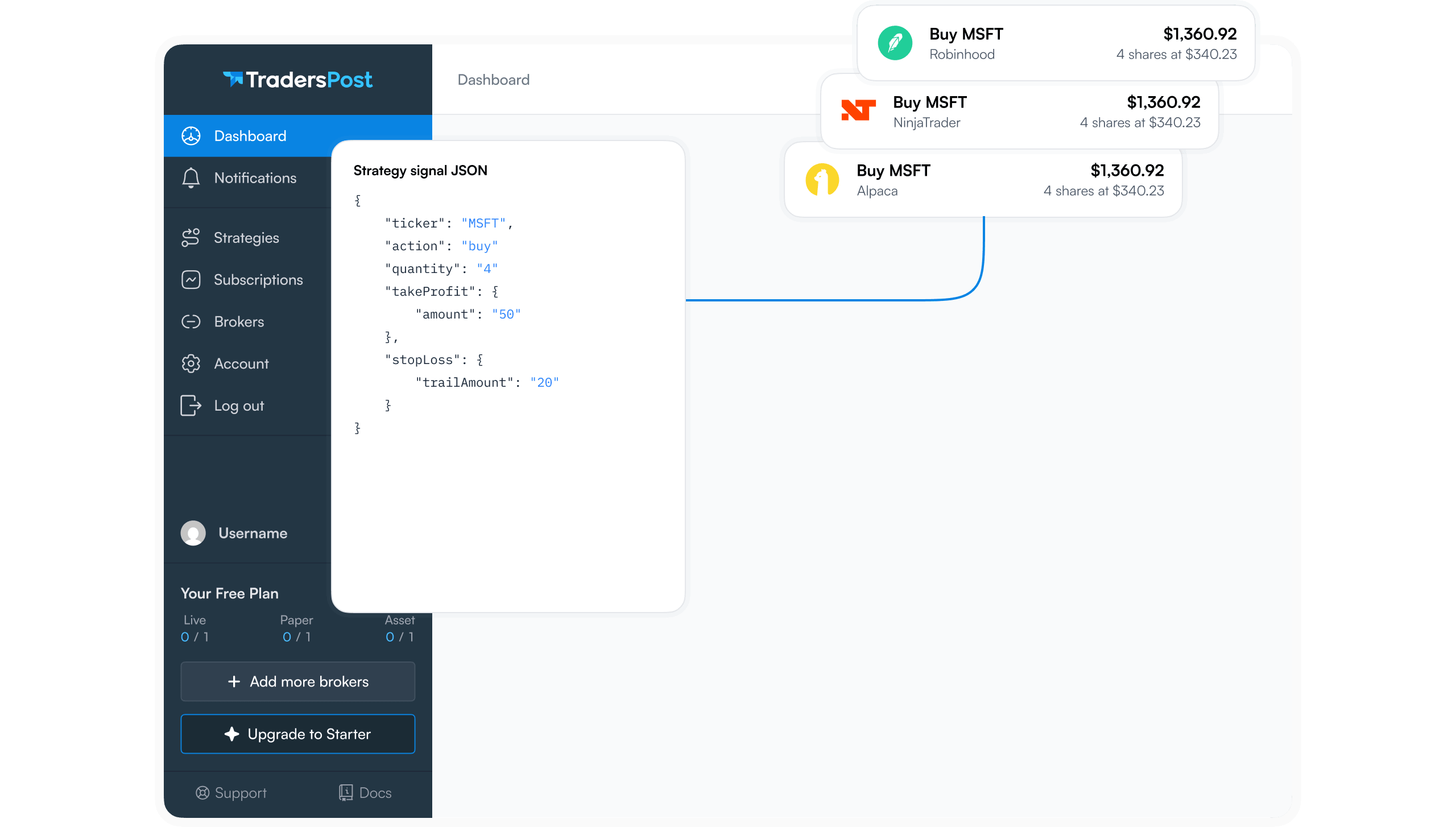
The receiver then reads the payload. TradersPost accepts JSON with fields such as ticker, action and quantity, plus optional stop-loss or take-profit settings, processes the signal under your strategy settings and submits the trade to your connected broker. For setup details, see the guides to creating TradingView alerts and using TradingView webhooks.
A Broker-Side Order That Waits
A limit, stop, stop-limit or trailing-stop order can be placed ahead of time and left to wait, so no assistant needs to keep checking the price. This is usually the simplest path for a single price level that an order type can express. Confirm which order types and time-in-force options your broker connection supports first.
A standing order cannot represent every condition. An indicator crossover, a multi-bar pattern, a volume filter or a compound rule belongs in TradingView, Pine Script or another strategy engine.
A Self-Hosted Polling Loop
A script you host can request market data on a fixed interval, evaluate a condition and call an order endpoint when it becomes true. That helps when neither a chart alert nor a broker order can express the logic, but you then own the process: keep it running, handle stale data and failed requests, prevent duplicate orders and log enough to diagnose missed checks.
A local AI model can send webhook signals too, but the market watcher itself should stay deterministic.
Why Scheduled Tasks Miss Fast Moves
ChatGPT Scheduled Tasks and Triggers
A standalone ChatGPT scheduled task starts a new chat for each run, while a task scheduled inside an existing chat keeps using that chat's context. On eligible plans, tasks can also run when a supported Gmail, Slack or GitHub event occurs. One task can use several event triggers, but it can't combine them with a time-based schedule.1
Those are app events, not market events. The documentation describes no trigger that fires when a ticker reaches a price or when an arbitrary trading webhook arrives.
Claude's Scheduled Task Cadence
Claude scheduled tasks are available on all paid plans and have the same capabilities as regular tasks, including connected tools, skills and installed plugins. They run remotely, so they keep their cadence while your computer is asleep, but a task that needs local files or apps only runs locally.2
An hourly task can produce a useful portfolio briefing. It cannot reliably catch a level that traded through and reversed 20 minutes before the next run.
Other Assistants Follow the Pattern
Google's help page for Gemini scheduled actions warns that fast-changing data such as stock prices won't be the latest when you receive them, and says the feature works best for daily summaries. Before using any assistant scheduler for trading-related work, check:
- The fastest supported recurring interval.
- Whether run times are exact or approximate.
- Which events can trigger a task.
- Whether the task needs your computer to be awake.
- What approvals apply to connected tools.
TradingView's MCP Server for Assistants
What the MCP Server Covers
The TradingView MCP Server connects TradingView data and tools to Claude, ChatGPT, Codex and other MCP-compatible clients through one server URL. It is included with Essential and higher plans, trial plans don't include it, and tool calls are rate-limited to about 100 requests per minute per user.4 TradingView announced the public beta on September 16, 2026, said it may limit the number of requests per day during the beta, and noted that market data in the beta is delayed.5
MCP is useful for conversational research, watchlists, market data and supported alert operations. It does not turn the assistant into a tick-by-tick watcher.
Why Webhook Alerts Stay Manual
The MCP create_alert tool can create a simple price alert, but not a webhook alert: TradingView requires two-factor authentication to be verified before enabling webhooks, and that check isn't available over MCP yet. Alerts that already have a webhook can't be updated through MCP either, and get_alerts filters out the message and webhook URL, returning a has_webhook flag instead.4
So the practical workflow is to create the basic alert through the assistant, then open it on tradingview.com and add the webhook URL there.
Simple Price Alerts, Not Indicators
The documented create_alert conditions are cross, cross_up, cross_down, greater and less. Multi-condition and indicator-based (study) alerts are not supported yet and are rejected.4 TradingView's beta announcement includes an example prompt about moving averages, but the tool documentation is what the server enforces.
Siri Shortcuts: Voice to Webhook
Why Siri Is the Clearest Path
Siri can run any shortcut by name from an iPhone, iPad, HomePod, Apple Watch or Mac. If the device is locked and the shortcut opens an app, Siri asks you to unlock it before continuing.6 A shortcut is a fixed sequence you build in advance, not an open-ended trade interpreter, which makes the request it sends easy to inspect and test.
Building the Webhook Shortcut
Apple's Get Contents of URL action supports GET, POST, PUT, PATCH and DELETE. Switching it to POST adds a Request Body parameter that can send JSON, a form or a file.7 A fixed shortcut that closes a QQQ position as a test can post a body such as:
{"ticker":"QQQ","action":"exit","test":true}Use only fields the destination documents. Keep broker credentials, passwords and other secrets out of the webhook body; TradingView gives the same warning for its own webhook messages.3
Adding a Confirmation Step
Put a Show Alert action right before Get Contents of URL. Show Alert presents a dialog with a title, a description, a Done button that continues the shortcut and an optional Cancel button that stops it.8 Siri recognizes the shortcut name, you review the dialog, and the POST is sent only after you tap Done.
Alexa, Google Home and the Gaps
Why These Paths Are Less Direct
We found no Alexa or Google Home documentation for a consumer action like Apple's that posts JSON to a URL. Amazon ended Alexa's IFTTT integration on October 31, 2023. A custom Alexa skill can be tested on your own Echo while it is still in development, if the device is registered to the same email as your Amazon developer account; anyone else needs a beta test. Amazon's skill policy also has a section on financial skills, which requires a timeliness disclaimer on stock quotes.
The other route is a home-automation bridge such as Home Assistant, which can expose a script to Alexa or Google Assistant, and the script makes the outbound HTTPS request. Either way you take on authentication, hosting, logging and maintenance, and voice platforms change often, so recheck the current first-party documentation before building anything that can reach your trading account.
What to Verify Before Building
- Whether the feature only works in developer testing.
- Whether the bridge can make outbound HTTPS requests.
- How the system confirms sensitive actions.
- How failed and duplicate requests are recorded.
- Whether every component can be tested on paper.
Voice Mode With Connected Tools
Voice Adds No New Permissions
Voice is another way to talk to the same assistant, not a separate security boundary. Anthropic says connected tools work the same way in Claude's voice mode as in text chat, and OpenAI says ChatGPT Voice in the desktop app follows the same permissions as the tasks it directs. A voice request can only reach what your account and settings already expose.
Verify Approvals Before Using Voice
Review connected tools, permission modes and approval prompts before relying on voice. Test whether the assistant pauses before an outside action, and what it does when a request is ambiguous. Don't assume speech is confirmed or safer than text: if a workflow can submit an order, the confirmation must live in the shortcut, task, destination or tool permission, not in the assistant's reading of your phrase.
Guardrails Before You Automate
One Shortcut, One Fixed Action
Create a separate shortcut for each narrow action, such as "exit my QQQ position." Don't ask one general shortcut to turn free-form speech into a ticker, side, quantity and order type. The payload should stay identical across runs unless you deliberately edit it.
Require a Confirmation Step
Insert a spoken or on-screen confirmation between the voice trigger and the live request, showing the ticker, action, destination and whether it is a test. On Siri, Show Alert gives you a real Cancel button. On other platforms, build an approval step that stops execution rather than just acknowledging the command.
Test Before You Trust It
Set test to true while you validate a payload. TradersPost then processes the message as a test signal and does not send an order to your broker. After that, use a paper account before switching to a live one.
Change one thing at a time: first the phrase, then the payload, then the destination. Check the signal record after every run so a formatting error, duplicate request or wrong action shows up before live use.
Bottom Line
Voice assistant trading works when conversation is kept separate from market monitoring. The assistant helps set up or launch a known action, while TradingView, a broker-side order or a dedicated process watches the actual condition.
- Use webhook alerts or standing orders when timing matters.
- Use assistant schedules for periodic checks and summaries.
- Use TradingView MCP for research and simple price alerts, then add the webhook on tradingview.com.
- Prefer fixed voice shortcuts with an explicit confirmation.
- Test every payload and paper trade before going live.
For the wider architecture, read AI agents and agentic trading. When your workflow is ready, connect the TradingView webhook to your broker and keep test set to true until the full path has been verified.
Frequently Asked Questions
Can Alexa Place a Stock Trade?
We found no documented built-in consumer command for it. A working setup needs a custom skill you test on your own device or a home-automation bridge that makes the web request for you. Test any such path on paper before trusting it.
Can ChatGPT or Claude Trade Automatically?
Their scheduled tasks run on a cadence, not as continuous price watchers. ChatGPT supports minute-based intervals inside a chat but documents no price or generic webhook trigger, and Claude's fastest recurring cadence is hourly. Neither replaces an event-driven alert or a waiting order.
Can MCP Create Webhook Alerts?
No. TradingView's MCP server can create a simple price alert but not a webhook alert, because the required two-factor authentication check isn't available over MCP. Create the alert without a webhook, then edit it on tradingview.com to add the URL.
Is Siri Voice Trading Safe?
A Siri Shortcut only runs the fixed actions you configured. Add Show Alert with a Cancel button before the POST request, use a test payload, and run the workflow against a paper account before connecting a funded one.
How Fast Can Assistants Check?
A task inside an existing ChatGPT chat can use minute-based intervals. Claude's fastest scheduled cadence is hourly. Anything that needs a faster reaction should use a webhook alert or an order that waits for its trigger.
References
1 OpenAI: Scheduled Tasks
2 Anthropic: Schedule Recurring Tasks
3 TradingView: How to Configure Webhook Alerts
4 TradingView MCP Server Documentation
5 TradingView: MCP Server Public Beta
6 Apple: Run Shortcuts With Siri
7 Apple: Request an API in Shortcuts
8 Apple: Use the Show Alert Action